
Sharing Data in Power BI: How to Choose the Right Method

The best way to share Power BI reports is to choose between three methods: a direct Share to specific users, an App for wide distribution, or a workspace for collaboration between report builders. The choice depends on the size of your audience and on licensing. The recipient usually needs a Pro or PPU licence unless the content sits in Premium or Fabric capacity, and security rules should always be built into the semantic model rather than into an individual report.
In brief:
- The right sharing method depends on the size of the audience and the licences in use; a Pro or PPU licence is usually required.
- Direct sharing suits a handful of users, while an App suits wider use by dozens or hundreds of people without editing rights.
- Build permission lets users create reports, but it is often granted too casually, so it should be reserved for competent analysts.
- The licensing model determines whether users can view content without an additional licence, particularly when Premium or Fabric capacity is used.
- Security measures such as RLS and OLS must be implemented in the semantic model, and how they are applied should be monitored carefully to avoid unexpected access problems.
Contents
- The main sharing methods and when to use them
- How Read, Build and Reshare permissions work in your semantic model
- Licences and capacity: what the sender and recipient need
- Security practices: RLS, OLS and model-level protection
- Quick troubleshooting checklist
- How to tackle sharing challenges when using Power BI with accounting data
- What you really need to know about a sharing strategy
- Packaged Power BI sharing solutions and the versions available
- Frequently asked questions
- Sources
The main sharing methods and when to use them
Each Power BI sharing channel solves a different problem, so the choice depends on who needs access and how many people that involves.
The direct Share dialog is the right tool when a report needs to go to a few specific users, such as the finance director or the head of a single department. The Share dialog lets you choose between “People in org”, specific individuals or links, and sharing takes effect immediately, with no further approval.
A workspace exists for collaboration between report builders: this is where analysts jointly edit models, test reports and align data sources, but this layer was not designed for everyday use by end users.
An App is intended for large-scale distribution, when dozens or hundreds of users need to receive content at the same time without being able to edit the underlying model.
In practice, these four scenarios are the most common:
- Share with a specific user or small group when quick, targeted access is needed.
- A workspace for an analytics team that builds and refines reports together.
- An App for a large internal audience, such as all branch managers.
- Teams integration or embedding in a website, when a report needs to be placed inside an existing working environment without a separate Power BI sign-in.
Teams integration is convenient when the team already works with Microsoft 365 tools, but embedding requires additional configuration and often a special licence, so it is worth choosing only when the content will be displayed outside the Power BI environment.
How Read, Build and Reshare permissions work in your semantic model
The permissions granted on a semantic model determine what a user can do with the data, not just with a particular report. The three main permissions differ quite radically:
- Read grants view-only access: the user sees the report but cannot create new content from the model.
- Build allows users to create new reports directly from the semantic model, as well as export data and use Analyze in Excel, so it confers considerably more power than simple viewing.
- Reshare allows the recipient to share the content with others themselves, effectively handing over control of further distribution.
Build permission is often granted without much thought, when an administrator simply adds a user as a co-author instead of a viewer. This means that anyone with Build permission can extract raw data from the model, bypassing the visual restrictions of the report.
Pro tip: Grant Build permission only to analysts who need to create their own reports, and give everyone else the Viewer role in the workspace or a simple Read permission via Share.
Licences and capacity: what the sender and recipient need
The type of licence determines whether sharing works at all, regardless of how precisely the permissions are configured.
According to Power BI licensing guidance, free users can view shared content only when both the report and the semantic model sit in Premium or Fabric capacity, from a certain higher tier upwards. Without such capacity, both parties, the sender and the recipient alike, usually need a Power BI Pro or Premium Per User (PPU) licence.
Higher-tier Premium or Fabric capacity allows free users to view content without an individual Pro licence. This significantly reduces licensing costs for organisations with many viewers and relatively few report builders.
Practical recommendations when choosing a licensing model:
- For small teams of up to a few dozen users, Pro or PPU licences for each member often work out cheaper.
- For larger organisations with hundreds of viewers, Premium or Fabric capacity usually pays for itself sooner.
- A mixed model, in which builders have PPU and capacity serves the viewers, is often the most practical option for mid-sized companies.
Security practices: RLS, OLS and model-level protection
Data security in a Power BI environment must be built into the semantic model itself, rather than relying on the user simply not seeing a hidden visual. Row-level security (RLS) is a reliable tool when implemented correctly.
RLS is rolled out in the following order:
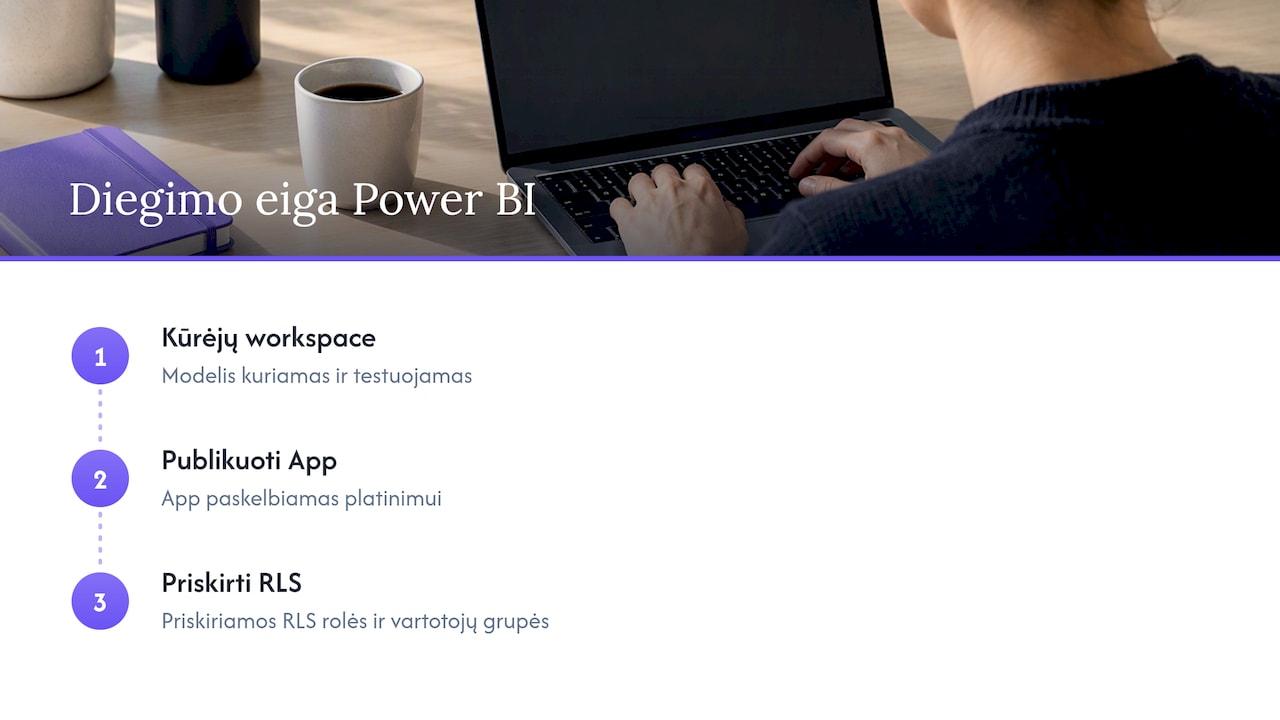
- Define roles using DAX formulas in the model, specifying which users should see which slices of the data.
- Publish the model to the Power BI service with the roles already defined.
- Assign specific users or security groups to each role.
- Check the result using the “Test as role” feature before distributing the content more widely.
An important point: RLS applies only to users who have the Viewer role in the workspace. If a user is assigned as Admin, Member or Contributor, they bypass RLS restrictions and see all the data, regardless of the roles defined.
OLS (object-level security) works in a similar way but restricts access to specific columns. Neither RLS nor OLS is replaced by hiding a visual, which is purely cosmetic and does not stop a user with Build permission from extracting the data.

Pro tip: If a user reports seeing a “Required permissions” message, check the semantic model’s Manage permissions settings first, not the report’s sharing window.
Quick troubleshooting checklist
When a user cannot access a report or receives an error message, the problem usually lies in the underlying model rather than in the report itself. Troubleshooting guidance recommends checking in this order:
- Check the semantic model’s Manage permissions window: does the user have Read, Build or Reshare permission?
- If the recipient is external, make sure they have been added as a Microsoft Entra B2B guest, not just as an email address in the Share window.
- Use security groups instead of distribution groups: dynamic distribution groups are not supported for sharing.
- Check the licence: does the recipient have Pro or PPU, or does the content sit in Premium capacity?
- Keep the builders’ workspace separate from App distribution, so that Build or edit permission is not accidentally granted instead of simple viewing.
How to tackle sharing challenges when using Power BI with accounting data
With Power BI, you can bring data from various accounting systems into a single model and automate report refreshes, so that the finance team does not spend time moving data manually. RLS and OLS can be configured at model level so that each department or restaurant sees only its own figures.
The rollout often separates the builders’ workspace from the final App: the model is first built and tested in a closed environment, then published as an App for distribution, and only after that are RLS roles and user groups assigned. This separation reduces the risk of a viewer accidentally receiving Build permission.
What you really need to know about a sharing strategy
Most managers think of Power BI sharing as a technical question: which button to press, which link to send. The real challenge is something else: the sharing decision is made too late, usually when the report is already finished and needs to be shown to someone.
The right approach is the reverse. Before building the model, it is worth deciding who will have Build permission, who will have only Read, and whether RLS will be needed from day one. Adding security after a report has already been distributed to a dozen people is always harder than building it in from the start.
Another common mistake is that organisations too often choose Build permission over Read because it seems the more flexible option. In reality, it opens up data export to people who only needed to look at the figures. The licensing decision is also often made the wrong way round, with Pro licences bought for everyone even when Premium capacity would have paid for itself sooner for a large group of viewers.
— Analitika360
Packaged Power BI sharing solutions and the versions available
If you would like us to handle sharing and security for you, we start with ready-built report packages, Rivilė Basic or Finvalda Basic, with the option to move up to the PRO version when deeper integration with other sources is needed.
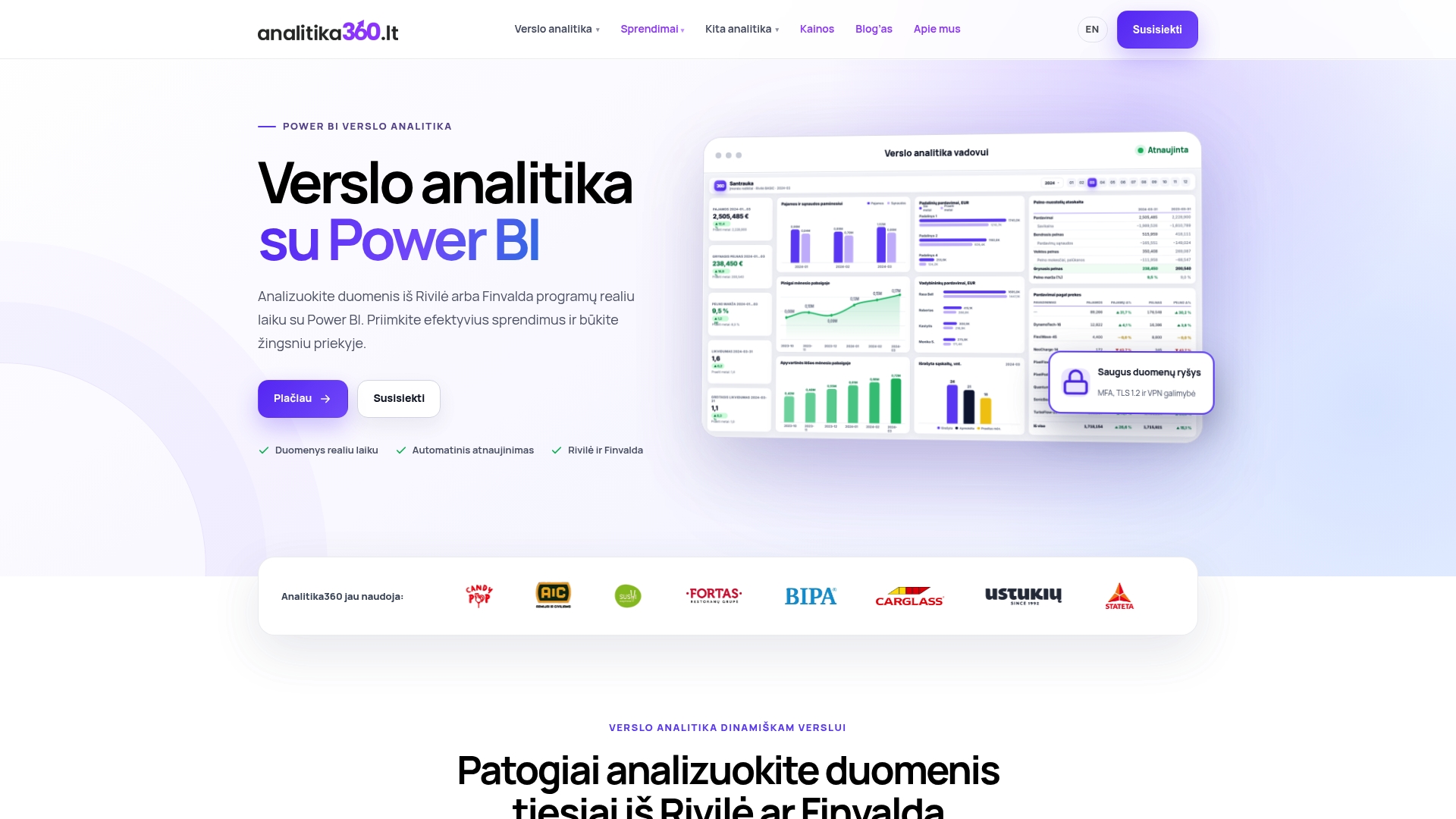
For every implementation, we configure RLS, the workspace structure and App distribution so that your team receives only the data it needs. Get in touch to arrange a demo, or take a look at our pricing and plans to choose the best solution for your company.
Frequently asked questions
What is the difference between sharing via Share, a workspace and an App?
Share suits quick, targeted access for a few users, a workspace is a collaboration space for report builders, and an App is for distributing reports to a large audience without editing rights. The choice depends on the number of recipients and whether they need to create content.
Can a free Power BI user view a shared report?
Yes, but only if both the report and the semantic model are in Premium or Fabric capacity, typically from the F64 tier upwards. Without such capacity, a free user will need a Pro or PPU licence.
Why does RLS not work for some users?
RLS applies only to users with the Viewer role in the workspace. If a user has the Admin, Member or Contributor role, RLS restrictions do not apply to them and they see all the data.
What should I do if a user gets an access error when opening a report?
First check the semantic model’s Manage permissions, because the most common cause of errors is the permissions on the underlying model rather than on the report itself. Also check that a security group is being used, as distribution groups are not supported for sharing.
How much does a ready-built Power BI solution with Rivilė or Finvalda integration cost?
Analitika360 offers the Rivilė Basic and Finvalda Basic packages for €59 a month, and PRO versions, such as Rivilė PRO, for €89 a month. Bespoke projects cost €70 an hour.