
A Finvalda sales guide for accountants: Excel import with Analitika360

The Finvalda sales module lets you prepare quotations, record reservations, issue VAT invoices and handle returns in a single system. Data can be exported to Excel or Power BI for analysis, or large volumes of sales can be imported back into the program. On top of that, the system syncs in real time with the Finvalda Finance PRO mobile app, and combined with Power BI solutions the accountant gets automated reports with no manual work.
In brief:
- When importing data from Excel, you must follow the preparation guidelines precisely, especially the requirements on column order and having the file closed.
- A reservation does not create an accounting entry and must be converted into a final invoice before that invoice is issued.
- Automated data synchronisation with Power BI and Finvalda Finance PRO lets you record sales and generate reports in real time without manual work.
- Before using the sales module, it is important to get the chart of accounts and the structure of items and objects in order, so that the data is of good quality and clear.
- As sales volumes grow, real-time analysis becomes essential, allowing sales and business performance indicators to be managed more effectively.
Contents
- Key features of the Finvalda sales module
- Importing from Excel: preparation and checks
- Reservation or sale: how the transactions differ in the accounts
- Which sales reports to choose and how to filter them
- Finvalda Finance PRO and Power BI: how automated integration works
- How to prepare your accounting team to work with the sales module
- Editor’s perspective: what to aim for when setting up sales processes
- What Analitika360 offers: Power BI report packages for Finvalda users
- Sources
Key features of the Finvalda sales module
“Finvalda Sales” covers the whole cycle, from the first contact with a customer to final payment. The module is designed so that the accountant and the sales manager work from the same data without creating duplicate documents.
The system lets you:
- Prepare quotations and convert them into reservations without re-entering data.
- Create, store and email VAT invoices directly from the program.
- Manage sales returns, goods receipts and write-offs with the appropriate document templates.
- Export data in XLS, CSV, PDF and XML formats for further analysis or for passing on to third parties.
It is precisely this set of features that allows the Finvalda WEB version to process every type of warehouse and sales transaction in one environment. In practice, this means a sales manager can prepare a quotation in a few minutes, and the accountant sees the same transaction already ready for invoicing, with no extra transfer between systems.
Importing from Excel: preparation and checks
Importing from Excel saves a considerable amount of manual data entry, but only when the file has been prepared exactly to Finvalda’s requirements. Incorrect column layout is the most common reason an import fails.
Before importing, check:
- That the column order matches the requirements of the Finvalda template, not your usual Excel structure.
- That the data starts on the specified row, with no extra headers or blank rows at the top.
- That the file is fully closed on your computer before you run the import.
- That the item and customer codes in the file match records that already exist in the system.
Experience shows that most import errors are caused by an open file or a changed column sequence. If the import keeps failing, an alternative is the auto-copy function, which lets you create a sales transaction directly from an existing reservation, avoiding re-entering the data.
Pro tip: Before every large import, make a backup of the database. If the import goes through with errors, rolling back to the previous state will be much quicker than correcting each record by hand.
Reservation or sale: how the transactions differ in the accounts
In Finvalda, a reservation and a final sales transaction serve different purposes, and this difference has a direct effect on the accuracy of the accounts. Training programmes teach new users to tell these two transaction types apart first of all, because using them incorrectly distorts stock balances and sales reports, according to the Apskaitos mokykla training programme.
The differences in practice:
- A reservation works like a quotation or draft: it does not remove the item from available stock and does not create an accounting entry.
- A reservation must be converted into a VAT invoice once the customer confirms the purchase and the goods actually leave the warehouse.
- Only the final sales transaction creates an accounting entry, which then feeds into the VAT return and the financial statements.
From an audit perspective, open reservations left unconverted for several months are one of the most common reasons why stock balances do not match reality. It is worth the accountant regularly reviewing the list of open reservations and closing those that have already been fulfilled physically.
Which sales reports to choose and how to filter them
Three types of report are used most often: sales for a selected period, a list of unpaid invoices and a summary of open sales reservations. Each answers a different question, so they should not be lumped together into a single combined view.
The quality of reports depends not only on the filters but also on how well the chart of accounts and the structure of objects (departments, projects, product groups) are organised. If the item card does not specify the exact object or category, the report will show a total with no way of drilling down into which department or product line is generating the profit. This is particularly relevant for service companies: when a service rather than goods is sold, the warehouse field often needs to be left blank or set to a default value; otherwise the system will wrongly write off quantities from stock that does not actually exist.
Before exporting data for further analysis, check:
- That every item card has an object or category assigned.
- That the period filter matches the accounting period rather than an unadjusted calendar month.
- That the report includes only final sales transactions, not open reservations.
Pro tip: Before moving data into Excel or Power BI, always export a test sample and reconcile the totals with the chart of accounts. It takes five minutes but saves hours of corrections later.
Once the data is in good order at source, exporting to Power BI becomes simply a technical step rather than an extra accounting audit.
Finvalda Finance PRO and Power BI: how automated integration works
Manually transferring data from Finvalda to Excel every week is one of the biggest time-wasters in accounting departments. Two integrations tackle this problem at different levels.
Finvalda Finance PRO syncs with the main program in real time and lets you create sales reservations and sales transactions directly from a mobile device, import items and customers, and send documents without a computer. A sales manager can record a sale at the customer’s premises, and the accountant sees the entry in the system at the same moment.
Analitika360’s Power BI solutions work at another level: they turn the Finvalda data already collected into visual, automatically refreshing reports. This means real-time financial reports available to management without additional Excel work, according to the Analitika360 product description.
| Solution | Main function | Best suited to |
|---|---|---|
| Finvalda WEB | Managing sales and warehouse transactions | Day-to-day accounting work |
| Finvalda Finance PRO | Real-time synchronisation, mobile working | Field sales staff, multiple workstations |
| Analitika360 Power BI (Basic/PRO) | Automated reports, dashboards | Management, financial analysis, industry-specific reports |
In practice, the roll-out goes like this: first, data synchronisation is set up between Finvalda and the chosen analytics platform; then a report package is selected to suit the line of business; and finally the team receives reports that refresh automatically every day with no further intervention. Automated integrations also reduce the risk of human error that inevitably creeps in when figures are moved manually between systems.
How to prepare your accounting team to work with the sales module
Before starting intensive work with the sales module, it pays to get the foundations right rather than learning “on the job”. A poorly configured chart of accounts or messy item cards will later cost far more time than sorting them out in advance.
Recommended order:
- Sort out the chart of accounts, item cards and object structure before you start recording sales in bulk.
- Train the team to distinguish between transaction types: from reservation through to the final sales transaction and report generation.
- Build an audit-ready habit: attach documents to every transaction and follow a clear adjustments policy.
Training programmes such as the Apskaitos mokykla course teach in exactly this order: from purchase and sales transactions through to report-building skills.
Pro tip: Make one person on the team responsible for a weekly review of open reservations. This prevents the situation where dozens of unclosed transactions are discovered at month end.
Editor’s perspective: what to aim for when setting up sales processes
Most companies want automation first and only then start worrying about data quality. That is the wrong way round. If the chart of accounts and item cards are in a mess, even the best Power BI report will simply show distorted figures faster and more conveniently.
Moving from Excel to real-time synchronisation is worthwhile once sales volumes are such that manual exporting takes more than an hour a week. Until then, it is better to invest time in discipline around transaction types rather than in technology.
What Analitika360 offers: Power BI report packages for Finvalda users
This is a solution for teams that already have well-organised Finvalda data but no longer want to transfer it manually into Excel reports for management every week.
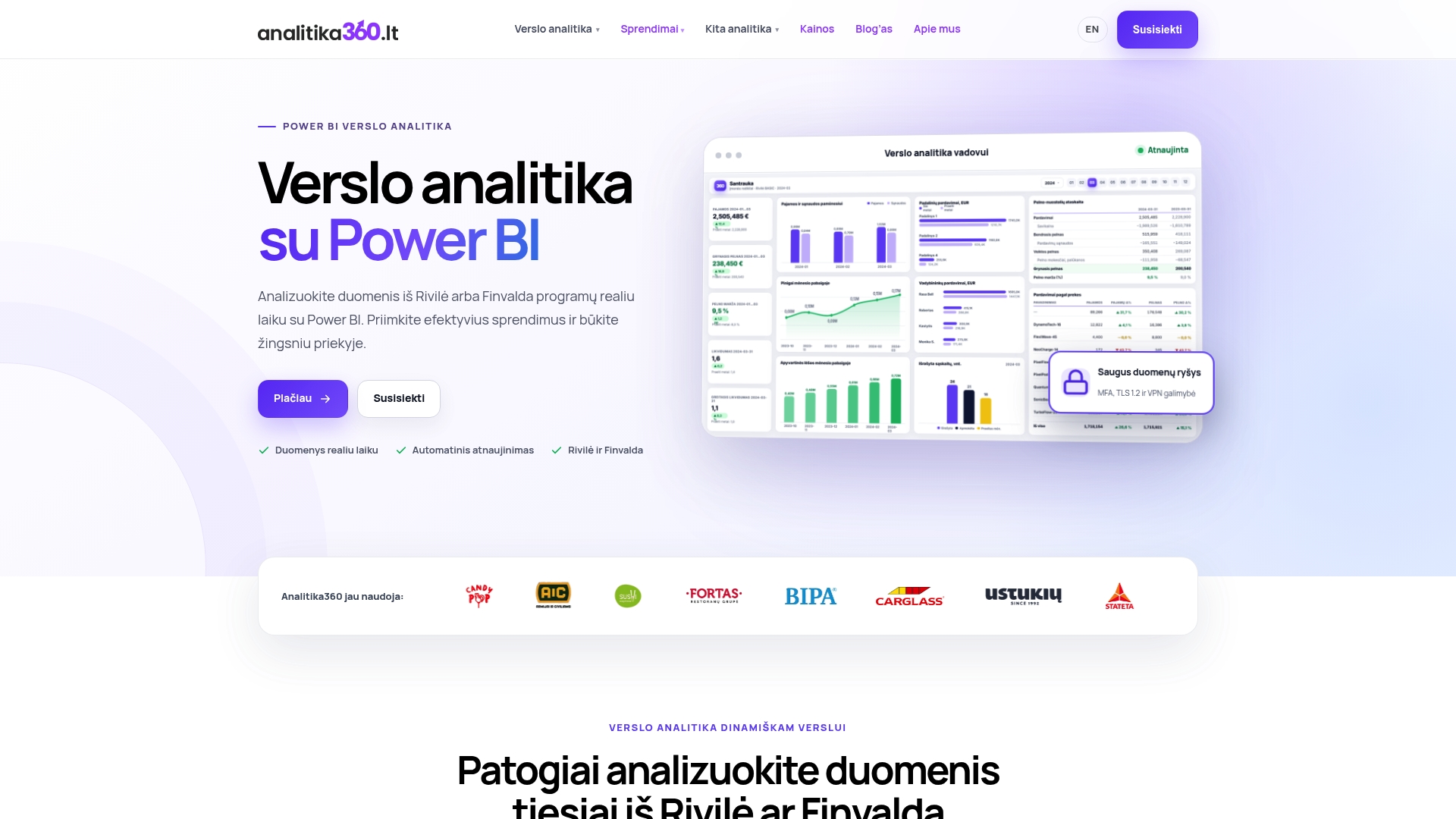
The Power BI Analitika Finvalda Basic package covers the key sales, income and expense indicators with automatic refresh, while the PRO version adds deeper segmentation by department, product group or customer. Both packages work without any additional manual data transfer between Finvalda and Power BI.
These solutions are worth choosing once you can see that weekly report preparation is taking up too much of the accountant’s time, or when management needs to see the sales picture in real time rather than after the month has closed. Industry-specific report versions tailored to different lines of business are also available.
To see how it looks with your own data, book a short demo or request a tailored quote via the Analitika360 solutions page.