Your business in 360°
 Sales Forecasting with Power BI: A Practical Guide

There are two ways to build a sales forecast in Power BI. The first is the built-in ‘Forecast’ feature in a line chart, which shows the trend and a confidence interval within a few minutes. The second is DAX measures, for when you want the forecast to be linked to a plan, growth assumptions or specific products. Both depend on the same things: clean sales data and a correctly built date table. This guide explains how to prepare the data, which settings to choose, how to update the forecast automatically and how to check whether it can be trusted.
In brief
- The built-in forecast works only in a line chart: the X axis must hold a date field and the Y axis a numeric sales value.
- Before building the forecast, create a continuous date table covering both actual and future periods.
- Specify seasonality in data points (12 for monthly data) and have at least two full cycles of history for the forecast.
- A rolling forecast is achieved when the dataset refreshes automatically on a schedule.
- Check accuracy with a hindcast: hide the last few points and compare the forecast with the actuals.
Contents
- When a Power BI forecast helps and when it doesn’t
- Preparing the data: date table and star schema
- The built-in forecast in a line chart
- How to choose the length, seasonality and confidence interval
- Forecasting with DAX: plan, actuals and growth assumptions
- Rolling forecasts and automatic refresh
- How to check forecast accuracy
- Common mistakes
- Our view
- Ready-made sales analytics for Rivilė and Finvalda users
- FAQ
- Sources
When a Power BI forecast helps and when it doesn’t
A Power BI forecast is based on a historical time series. It works well when sales repeat to a clear rhythm: a restaurant’s weekly turnover, seasonal goods, monthly wholesale volumes. In such cases the forecast helps plan inventory, staff rotas and cash flow.
A forecast is less useful when:
- there is less than a year of history;
- sales are driven by a few large one-off deals;
- the product range, pricing or number of shops changed during the period;
- there are gaps in the data, for example several weeks of documents not entered.
In these cases it is better to combine a statistical forecast with management assumptions in DAX rather than rely on the automatic model alone.
Preparing the data: date table and star schema
A forecast is only as accurate as its data is tidy. Start by putting the model in order.
Star schema
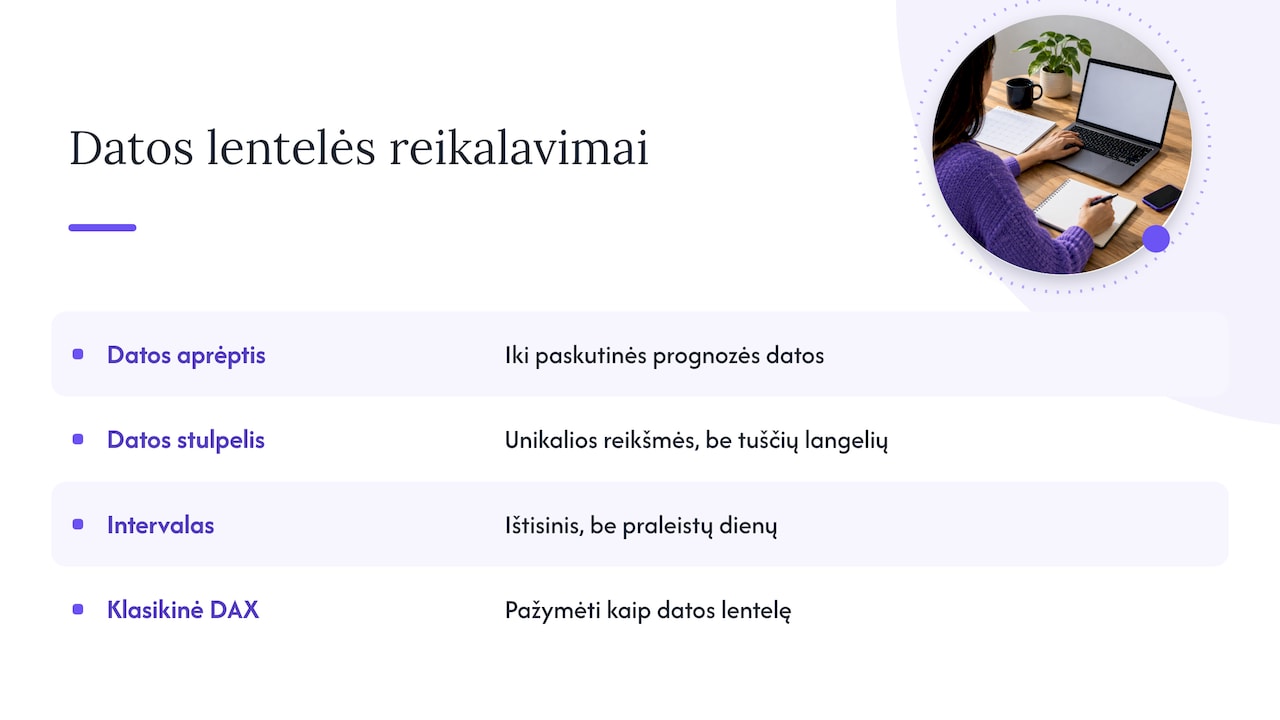
Microsoft recommends a star schema for Power BI models: the sales fact table holds transactions and numeric values, while date, product, customer or department dimensions are used for filtering and grouping. The date dimension has a unique key and attributes such as year, quarter, month and day of the week.
A date table that extends into the future
A forecast needs dates that do not yet exist in the fact table. The date table must therefore reach not just the last sale but the last forecast date. The documentation for the DAX CALENDAR function gives exactly this example:
Data = CALENDAR(MINX(Sales, [Date]), MAXX(Forecast, [Date]))This way a single date dimension serves both the actuals and the forecast. Under Microsoft’s requirements for a date table, the date column must contain unique values, no blanks and a continuous range with no missing days. Mark the table by choosing ‘Mark as date table’ in the ‘Fields’ pane: this is essential when using the classic DAX time intelligence functions.
Cleaning data in Power Query
In Power Query, check three things: that the sale date has the Date type, that the amount is numeric (ideally the fixed decimal number type), and that there are no duplicate documents. Credit notes and returns must reduce sales on the same day they are posted, otherwise the forecast will ‘learn’ artificial spikes. You will find a more detailed checklist in our article on data quality monitoring in Power BI.
The built-in forecast in a line chart
Microsoft states that the Forecast feature is available only in line charts. The steps:
- Add a line chart and drag the date field onto the X axis.
- Select the ‘Date’ field itself, not the automatic Year–Quarter–Month–Day hierarchy. In the axis settings, set the axis type to continuous.
- Put a sales measure on the Y axis, for example [Sales excl. VAT].
- Open the ‘Analytics’ pane and switch on ‘Forecast’.
- Set the length, seasonality and confidence interval, then click ‘Apply’.
This process is also shown step by step in the official Microsoft PL-300 course lab. The forecast appears in the chart as a continuation of the line with a shaded interval.
There is an important limitation: the values from the built-in forecast cannot be used in other measures or tables. If you want to show the forecast on a KPI card or compare it with the budget, you will need a DAX solution.
How to choose the length, seasonality and confidence interval
The PL-300 example uses 365 seasonality points for daily data, a forecast length of 1 month and an 80% confidence interval, and recommends having at least two full cycles of history. Apply the same logic to other data granularities:
| Data granularity | Seasonality (points) | Sensible length | Minimum history |
|---|---|---|---|
| Daily, annual cycle | 365 | 1–2 months | 2 years |
| Daily, weekly cycle (restaurants) | 7 | 2–4 weeks | 8–12 weeks |
| Weekly | 52 | 4–12 weeks | 2 years |
| Monthly | 12 | 3–6 months | 24 months |
| Quarterly | 4 | 2–4 quarters | 8 quarters |
The confidence interval shows the uncertainty. An 80% interval is narrower and more convenient for day-to-day planning; a 95% interval is wider and suits risk assessment, for example working out worst-case inventory needs. A very wide interval is a warning sign: either the data is too noisy or the wrong seasonality has been chosen.
Forecasting with DAX: plan, actuals and growth assumptions
A DAX forecast is less automatic but transparent: you can see every assumption in the formula. The simplest model, and one the business readily understands, is the same period’s sales last year multiplied by a growth factor:
Prognozė =
CALCULATE([Pardavimai], SAMEPERIODLASTYEAR('Data'[Date]))
    * (1 + [Augimo koeficientas])
[Augimo koeficientas] (the growth factor) can be a ‘What-if’ parameter that a manager adjusts with a slider: 0%, 5%, 10%. A single measure then combines actuals and the future:
Faktas ir prognozė =
VAR PaskutineData = CALCULATE(MAX(Sales[Date]), ALL('Data'))
RETURN
IF(MAX('Data'[Date]) <= PaskutineData, [Pardavimai], [Prognozė])
Such a measure can be filtered by product group, department or sales manager, and compared with the budget. We describe how to build a reliable plan-versus-actual report in our article on budget comparison in Power BI. If you forecast B2B sales, a probability-weighted deal pipeline from your CRM is often more accurate than the historical series alone; we cover this in more detail in our article on CRM and Power BI integration.
For more complex models, Power BI Desktop lets you create R visuals for advanced analytics, including forecasting, and publish them to the Power BI Service.
Rolling forecasts and automatic refresh
A rolling forecast always looks the same distance ahead from the last actual date, for example 12 months. The built-in Power BI forecast essentially already works this way: it starts from the last data point, so every data refresh recalculates it. In the DAX version you achieve the same by calculating PaskutineData dynamically and making sure the date table extends at least 12 months ahead of today.
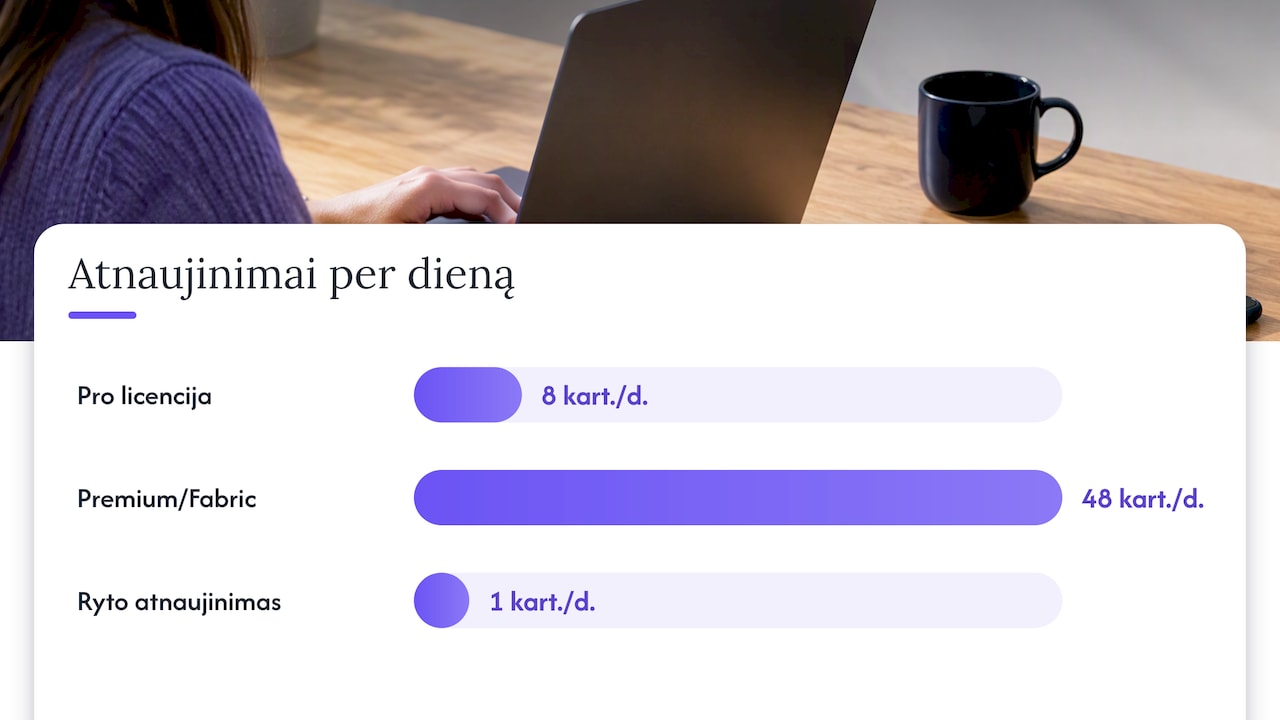
For the forecast to genuinely roll, the data must refresh without manual work. The Power BI Service lets you schedule a refresh: up to 8 times a day with a Pro licence, and up to 48 times with Premium Per User or Premium/Fabric capacity. For a sales forecast, a single morning refresh is usually enough. Bear in mind that, according to the same Microsoft documentation, scheduled refresh is paused automatically if a report goes unused for a long time.
How to check forecast accuracy
A forecast without checking is just a pretty line. Microsoft’s forecasting material describes the principle of hindcasting: the model ‘pretends’ to be in the past and forecasts a period whose actuals you already know. In practice:
- In the Forecast settings, hide the last few points (‘Ignore last’), for example 3 months.
- Compare the forecast line with the actual values for those months.
- In the DAX version, calculate the mean absolute percentage error (MAPE): for each period |actual − forecast| / actual, then take the average.
- Change the seasonality or length of history and repeat. Choose the settings with the lowest error.
If the forecast is used every month, keep a copy of it: saved earlier forecasts let you see whether the model is systematically over-optimistic.
Common mistakes
- Date hierarchy instead of the date field. The forecast won’t switch on, or is calculated by category.
- Incomplete final period. If the month isn’t over yet, its total is lower and the model sees a drop. Hide that month with ‘Ignore last’ or filter it out.
- Non-continuous date table. Missing days distort seasonality.
- Mixed levels. When forecasting the whole company together with a newly opened branch, growth looks bigger than it really is.
- Returns posted in the following month. An artificial spike and dip are repeated in the forecast.
Our view
Working with Rivilė and Finvalda data, we see that the quality of a forecast depends far more on the data model than on the algorithm. When sales, returns, inventory and receivables and payables are brought together in a single Power BI model that refreshes automatically, even a simple forecast becomes useful every day: the finance manager can see how much turnover to expect next month, and the restaurant manager plans shifts around the weekly rhythm.
That is why we recommend starting with reliable sales analysis and adding the forecast as the next step. The forecast is worth showing alongside actuals and the plan, with clearly stated assumptions, so that managers trust it and adjust it rather than ignore it.
— Analitika360
Ready-made sales analytics for Rivilė and Finvalda users
Analitika360 has built Power BI report packages that refresh sales, costs, profit, inventory and receivables and payables data from Rivilė or Finvalda with no extra work from the user. This is the foundation on which a forecast works reliably.
- Rivilė Basic and Finvalda Basic: €59 a month.
- Rivilė PRO and Finvalda PRO: €89 a month.
- Custom projects, such as a DAX forecasting model with plan scenarios or CRM integration: €70 an hour.
Compare package contents and terms on the business analytics pricing page. If you use Rivilė, start with Rivilė sales analysis with Power BI; for Finvalda users there is the Finvalda sales analysis guide.
FAQ
Does forecasting in Power BI require an additional licence?
The built-in Forecast feature is part of Power BI Desktop, so you can build a forecast without any add-ons. To share the report and refresh it on a schedule in the Power BI Service, you need an appropriate licence, such as Pro. The licence also determines how many times a day the data can be refreshed.
How much history is needed for a reliable forecast?
Microsoft’s practical material recommends at least two full seasonal cycles. For monthly sales with annual seasonality, that means at least 24 months. With less data, the forecast will show the trend but not the seasonal fluctuations.
Can I forecast by individual product or department?
Yes. The built-in forecast recalculates when a filter or slicer is applied, so you can select a specific department. If you need a forecast table for all products at once, use a DAX measure, which works in any table or matrix.
How does a rolling forecast differ from an annual budget?
A budget is approved once a year, whereas a rolling forecast is recalculated with every refresh of new actuals and always looks the same distance ahead. It is best to show both together: the budget shows the target, and the forecast shows where you are actually heading.
Sources
Understand star schema and the importance for Power BI – Microsoft Learn CALENDAR function (DAX) – Microsoft Learn Set and use date tables in Power BI Desktop – Microsoft Learn Use the Analytics pane in Power BI – Microsoft Learn Customize X-Axis and Y-Axis Properties – Microsoft Learn Perform analytics in Power BI – Microsoft PL-300 Labs Create Advanced Analytics and Visualizations Using R – Microsoft Learn Configure scheduled refresh – Microsoft Learn Getting Started with Forecasting and Hindcasting – Microsoft TechNet Wiki