Your business in 360°
 Incremental Refresh in Power BI: How to Set It Up

Incremental refresh lets Power BI load only new and changed data each time, rather than recalculating the whole table from the very first record. When a sales, purchases or general ledger transactions table grows by millions of rows, this setting is what decides whether a report refreshes in a few minutes or grinds away for half an hour and ends in an error. Below you will find how the mechanism works, what you need before you start, a step-by-step setup and the mistakes we see most often when deploying reports built on accounting systems.
In brief
- Incremental refresh splits a table into period-based segments (partitions): older data is left untouched and only the most recent window is refreshed.
- It needs two Power Query parameters named exactly RangeStart and RangeEnd, plus a date column to filter on.
- The feature works with Power BI Pro, Premium per user, Premium and Embedded licences, so expensive capacity is not required.
- The biggest risk is broken query folding, which means Power BI downloads all the data anyway.
- The first refresh in the service takes the longest; subsequent ones are considerably faster.
Contents
- How incremental refresh works
- What you need before you start
- Step-by-step setup
- Common mistakes and how to avoid them
- Our view: incremental refresh for accounting data
- Ready-built Power BI packages for Rivilė and Finvalda users
- Frequently asked questions
- Sources
How incremental refresh works
A standard scheduled refresh deletes the table’s data and reloads it from scratch every time. For a small model this is no problem. However, as the Microsoft documentation on incremental refresh points out, when a table holds tens of millions of rows or more, such a refresh can take a long time and consume too many resources.
Incremental refresh solves this with a policy that you define in Power BI Desktop. Once the report is published, the Power BI service creates two types of partition during the first refresh:
- Historical partitions: data from earlier periods that no longer changes and is no longer refreshed.
- Refreshable partitions: the most recent period, for example the last 30 days, which is recalculated with every refresh.
Optionally, you can also add a real-time DirectQuery partition, but this option is available only in a Premium environment.
| Criterion | Full refresh | Incremental refresh |
|---|---|---|
| What data is loaded | The whole table every time | Only the most recent period window |
| Load on the data source | High, grows with the history | Low and stable |
| Refresh duration | Gets longer every month | Stays roughly the same |
| Setup complexity | No extra work | Parameters, filter and policy |
| When it fits | Small tables, reference lists | Large transaction (fact) tables |
It is also important to understand the limits. According to Microsoft, even with incremental refresh, refresh operations are still subject to the same two-hour and five-hour time limits, unless they are run through the XMLA endpoint. A well-designed policy not only shortens the refresh but also helps avoid keeping unnecessary history in the model.
What you need before you start
Before you open Power Query, check four things. If even one is not met, the settings will be saved but you will not get the expected effect.
The right licence
According to the supported plans listed by Microsoft, incremental refresh is supported for Power BI Premium, Premium per user, Power BI Pro and Power BI Embedded models. For most small and medium-sized companies a Pro licence is enough. The real-time DirectQuery partition and some advanced features remain limited to Premium.
A date column
The table must have a date column by which the data will be partitioned: usually the document, transaction or order date. It can be of date/time or whole number type. If the date is stored as a number in yyyymmdd format (e.g. 20261022), Microsoft recommends creating a function that converts the RangeStart and RangeEnd values into the same kind of number.
A source that supports query folding
Incremental refresh works best with relational databases such as SQL Server. The RangeStart and RangeEnd filter must be passed to the source itself as part of its query. Microsoft states that the feature can also be applied to Excel files in a folder, files in SharePoint or RSS feeds, but these are advanced scenarios requiring additional customisation and testing.
Access to on-premises data
If the accounting database sits on the company’s own server, the Power BI service will need a data gateway. Without it, the cloud has no route to the data and the refresh will not happen at all.
Step-by-step setup
The sequence below follows the official Microsoft configuration guide.
- Create the parameters. In Power BI Desktop, select Transform data, then Manage Parameters → New Parameter. Create a parameter called RangeStart, type Date/Time, and a second parameter called RangeEnd. The names are case-sensitive, so ‘rangestart’ will not be recognised.
- Set a small initial range. In Desktop, these values are used only to load a small amount of data into the model, for example from 1 October 2026 to 22 October 2026. Once the report is published, the policy takes over and replaces these values.
- Apply a filter to the date column. In the column filter, choose Custom Filter: date is after or equal to RangeStart and is before RangeEnd. One of the comparisons must be strict. If you leave ‘less than or equal to’ on both sides, a record whose date falls exactly on the boundary will land in two partitions and be duplicated.
- Close Power Query. Click Close & Apply. The model will load only the data for the selected range.
- Define the policy. Right-click the table and select Incremental refresh. Specify how much history to keep (e.g. 5 years) and what window to refresh (e.g. 30 days). You can also enable:
- Only refresh complete days: days that have not yet ended are not loaded;
- Detect data changes: only the days in which data changed at the source are refreshed. This requires a separate last-modified date column, which cannot be the same one used to partition the table.
- Publish and run the first refresh. The first refresh in the service loads the entire retained history, so it can take quite a while. Subsequent refreshes, whether manual or scheduled, are usually much faster.
Finally, configure the schedule: how many times a day and at what times the data should refresh. We covered the limits and settings for each licence in our article on Power BI scheduled refresh.
Common mistakes and how to avoid them
Broken query folding. Microsoft stresses that the RangeStart and RangeEnd filter must fold into the source’s original query. If you insert a step before the filter that the source cannot translate into its own query language (for example, a complex column transformation), Power BI downloads the whole table and filters it itself. It is easy to check: in Power Query, right-click the filter step and see whether the View Native Query option is available.
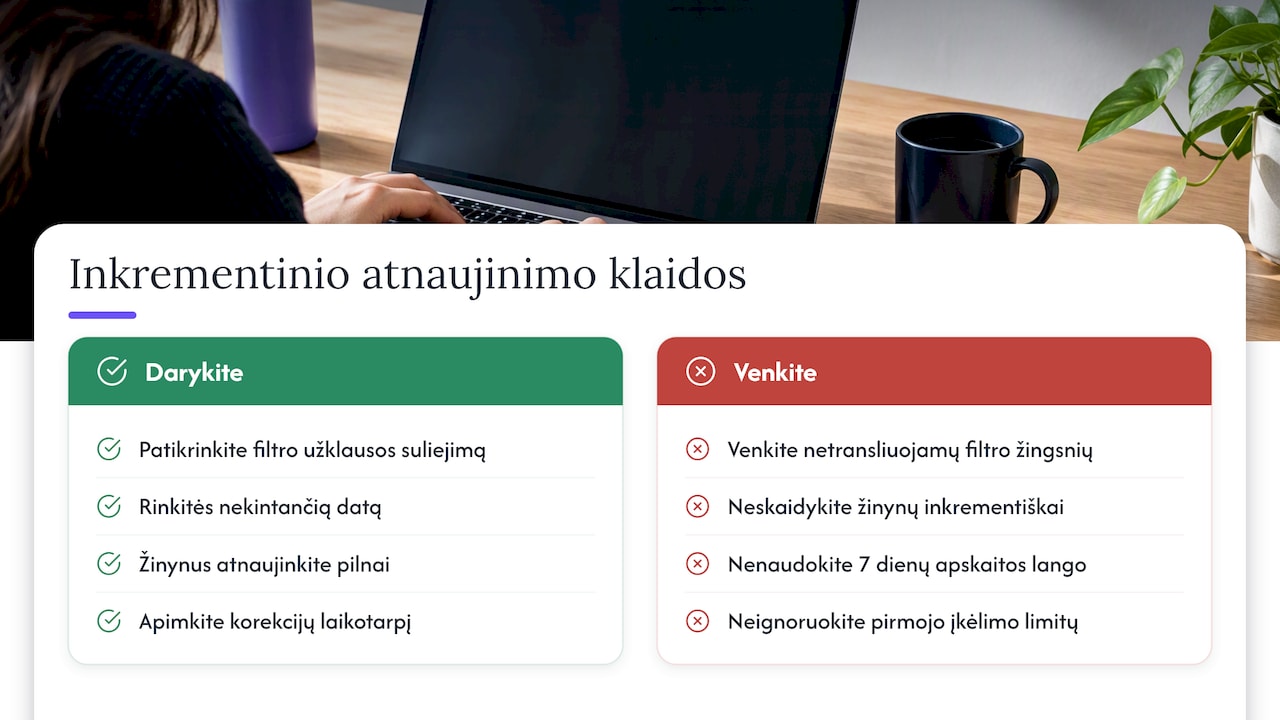
The wrong date column. For partitioning, choose a date that does not change once the record has been created. If a document can be moved to another period, consider a wider refresh window, for example two or three months instead of a few days.
Incremental refresh on reference tables. Lists of customers, products or departments are usually small, and their records can change at any time. It is generally simpler to refresh them in full and to use incremental refresh only for large transaction tables.
Too narrow a window for accounting. In bookkeeping, the previous month’s documents are often still being adjusted for several weeks. If you refresh only the last 7 days, later corrections will not make it into the report. The refresh window should cover at least the period that can still be changed in your company before the month is closed.
Expecting the time limits to disappear. Incremental refresh reduces the load but does not remove the limits. If the first full load does not fit within them, you will need to reduce the retained history or load the data in batches.
Our view: incremental refresh for accounting data
When deploying Power BI reports built on Rivilė and Finvalda, we find that incremental refresh is often treated as a technical detail until the model starts refreshing too slowly. In our experience, it is an architectural question worth addressing from day one.
Accounting data has its own characteristics. Transactions accumulate every day, while documents from past periods are still being adjusted until the month-end or year-end close. So align the refresh window with your accounting process, not just with technical convenience. When a single Power BI model combines accounting data with SharePoint, Excel or CRM sources, it is worth deciding separately for each table whether to refresh it incrementally or in full.
What matters most is that a manager or finance director can open the report in the morning and see the correct revenue, expense and profit figures without wondering how they were refreshed. That is exactly why our reports refresh automatically, with no extra work for the user.
— Analitika360
Ready-built Power BI packages for Rivilė and Finvalda users
If you would rather not configure parameters, filters and refresh policies yourself, Analitika360 offers ready-built report sets with automatic data refresh. The Rivilė Basic and Finvalda Basic plans cost €59 a month, and the Rivilė PRO and Finvalda PRO plans cost €89 a month. For specific needs, such as integrating additional sources, we carry out bespoke projects at €70 an hour. You can compare all plans on the business analytics pricing page, and you can read more about how automatic report refresh works in a separate article.

Frequently asked questions
Do I need a Premium licence for incremental refresh?
No. Microsoft states that the feature is supported for Power BI Pro, Premium per user, Premium and Embedded models. Premium is required only for certain additional features, such as the real-time DirectQuery partition.
What is the difference between incremental load and incremental refresh?
‘Incremental load’ is a general data engineering term meaning loading only new records into any system, for example into a data warehouse via an ETL process. ‘Incremental refresh’ is a specific Power BI feature that applies this principle at model level through the RangeStart and RangeEnd parameters and partitions.
Can incremental refresh be used with Excel files?
Yes, but it is an advanced scenario. Microsoft notes that with files in a folder or in SharePoint you need to filter the files themselves by date, because Excel does not support query folding in the way a database does. Such a solution should be tested thoroughly before use in a production environment.
Why has the refresh not got faster after setup?
The most common reason is broken query folding: Power BI is still downloading the whole table. Check whether the View Native Query option is available for the filter step, and move transformations after the filter or into the source itself.
Sources
- Microsoft Learn: Configure incremental refresh and real-time data for Power BI semantic models
- Microsoft Learn: Configure incremental refresh for Power BI semantic models
- Microsoft Learn: LinkedIn Learning Power BI connector, incremental refresh