
For Accountants: Turn Rivilė Debt Reports into a Management Tool with Power BI

In Rivilė, you produce a debt report via Servisas → Debitorinės/Kreditorinės operacijos → Kliento būklė (Service → Receivables/Payables Operations → Client Status) or Suminės skolos (Summary Debts). Before printing, check three things: the status date, the currency revaluation and the offset status, because an error in any one of them distorts the whole picture of what is owed. If you need to take debt management to the next level, for example by seeing late-paying clients in real time, this data can be automated in Power BI.
In brief:
- A debt report must be produced accurately: the status date, exchange rates and offset statuses all need checking before printing.
- Debt offsetting modes include manual, semi-automated and FIFO methods, which must be kept clearly separate to avoid confusion.
- The system can automate payment reminders and reconciliation statements, using a minimum overdue amount threshold and a dedicated system set-up.
- Costly errors most often arise from incorrect currency revaluation or offset rules that have not been set up, so these must be checked against the source documents.
- Power BI lets you monitor the state of debts automatically and visually, which is particularly useful for large companies and multi-division structures.
Contents
- How to produce the main debt reports in Rivilė
- How debt offsetting works: manual, semi-automated and FIFO
- How to produce payment reminders and reconciliation statements
- How to create payments from summary debts
- Foreign currency debts and the most common reporting errors
- The Analitika360 view: when Power BI complements Rivilė reports
- Rivilė reports vs. automated debt management
- Sources
How to produce the main debt reports in Rivilė
Rivilė debt reports are generated in one place, but the result depends on how you set the filters. Rivilė’s Receivables and Payables Operations module lets you view customer and supplier balances, analyse debt ageing and print a report straight away based on the criteria you choose.
The main window is opened from the menu Servisas → Debitorinės/Kreditorinės operacijos → Kliento būklė (Service → Receivables/Payables Operations → Client Status). This window produces both summary and detailed reports, depending on the format selected. The Rivilė guide states that the result is determined by two settings: the status date and the filters applied.
In practice, the sequence of steps looks like this:
- Open Servisas → Debitorinės/Kreditorinės operacijos → Kliento būklė.
- Set the status date up to which the balance is calculated. This date determines whether the report shows the current or a historical position.
- Choose the filters: customer or supplier, currency, specific invoice conditions.
- If you need an overall view without detail, print “Klientų būklė suminė (i)” (Client Status Summary).
- If you need to see each invoice separately, switch to the detailed report format.
- Check the payment schedule if the client is paying in instalments over several due dates.
The summary report is suited to a quick check when you need to know the total amount owed. The detailed version is useful when you need to trace a specific invoice or sort out a particular payment with a client.
Pro tip: If you are preparing the report before month-end close, always set the status date to the last day of the month rather than leaving it at the default “today”. Otherwise the report will include transactions that logically belong to the next period.
How debt offsetting works: manual, semi-automated and FIFO
In Rivilė, offsetting means matching a debt with a payment, either against a specific document or for the full amount. The system has three fundamentally different modes, and mixing them up is the most common source of confusion in reports.
- Manual offsetting. The user chooses which payment covers which invoice. This suits cases where the client pays with reference to a specific document, or where a special arrangement is needed.
- Semi-automated offsetting. The system matches entries only when the client, currency and document number all agree. This is convenient when the payment transfer includes the invoice details.
- Automated (FIFO) offsetting. The Rivilė module description confirms that automatic mode clears the oldest debts first, on the FIFO principle, and requires a rule to be set up in advance on the client card.
FIFO offsetting speeds up work with clients who pay regularly without specific references, but it needs to be reviewed manually when a client has disputed invoices or partial payments in several currencies.
How to produce payment reminders and reconciliation statements
Reminders and reconciliation statements are produced in the same Receivables/Payables Operations module, in the client notification list. The Rivilė guide describes the whole set-up, from the minimum amount through to automatic sending.
- You can set a minimum overdue amount in the system, below which no reminder will be generated.
- Only clients with at least one invoice above this threshold are included in the notification list.
- In the email template you can use the variable
{{clientAdditionalEmails}}so that the reminder goes not only to the main contact but also to the client’s additional contacts. - Automatic sending requires a separate user with restricted rights, a defined export template and a task scheduler, such as “Tasker” or the Windows Task Scheduler.
Pro tip: Create a dedicated system user solely for sending reminders. If you use a shared accountant login, any break in the session will halt the entire automation.
How to create payments from summary debts
Payment transactions from summary debts are created on the same principle as reports, just in a different window. The Rivilė guide on summary debts sets out the exact sequence.
- Open Servisas → Debitorinės/Kreditorinės operacijos → Suminės skolos (Service → Receivables/Payables Operations → Summary Debts).
- Choose the period and the client whose debts you want to select.
- Tick the required documents in the list.
- Click „Atsiskaitymo operacijų formavimas“ (Create Settlement Transactions) and set the transaction type to “Išmokos” (Payments Out).
- If needed, tick “Naudoti mokėjimo datą” (Use payment date). This option carries the summary debt’s payment date over to the newly created payment, rather than assigning today’s date.
- You will find the created transaction under Atsiskaitymai → Išmokos (Settlements → Payments Out).
This route is especially useful when you need to prepare a batch payment list for several suppliers at once, without creating each transaction separately.
Foreign currency debts and the most common reporting errors
When a client or supplier has invoices in a currency other than the base currency, the report will be wrong until revaluation has been carried out. Rivilė’s lesson on client debt analysis notes that revaluation must be done before the report is produced, not afterwards.
For foreign currency balances, the status date matters even more than for the national currency: the date chosen determines the exchange rate at which the unpaid balance is valued. This can also be monitored with exchange rate fluctuation analysis, as described in the currency market analysis guide.
- Never adjust figures in the report itself. The Rivilė guide reminds users that corrections must go through the receivables or payables transaction documents, not through the report window.
- Check that an offset rule is set on the client card. Without it, automatic offsetting simply will not run.
- Review debt ageing regularly, as a single one-off report does not show the trend.
According to the Rivilė ERP documentation, debt ageing should be monitored at least once a week, because an infrequent one-off check will not catch late-paying clients in time.
The Analitika360 view: when Power BI complements Rivilė reports
Rivilė’s printed reports are accurate but static: you see a snapshot that has to be refreshed manually every time. That is good enough when the list of debtors is short and a single accountant can get through it every day.
Things change when there are hundreds of debts, several divisions, or a dozen or more clients jostling in one list every day. At that point, manually reviewing Rivilė reports becomes a waste of time that can be avoided. Analitika360 Power BI reports combine Rivilė data with a visual dashboard that refreshes automatically and shows at a glance which clients are the furthest overdue and what the overall risk is.
This kind of solution is often used by companies working with several client groups at once, and by restaurant chains where payables are spread across many suppliers. Implementation typically takes anywhere from a few days to a few weeks, depending on the number of data sources.
— Analitika360
Rivilė reports vs. automated debt management
If you already know how to print a client status report in Rivilė, the next logical question is: how much time do you spend reviewing it every week?
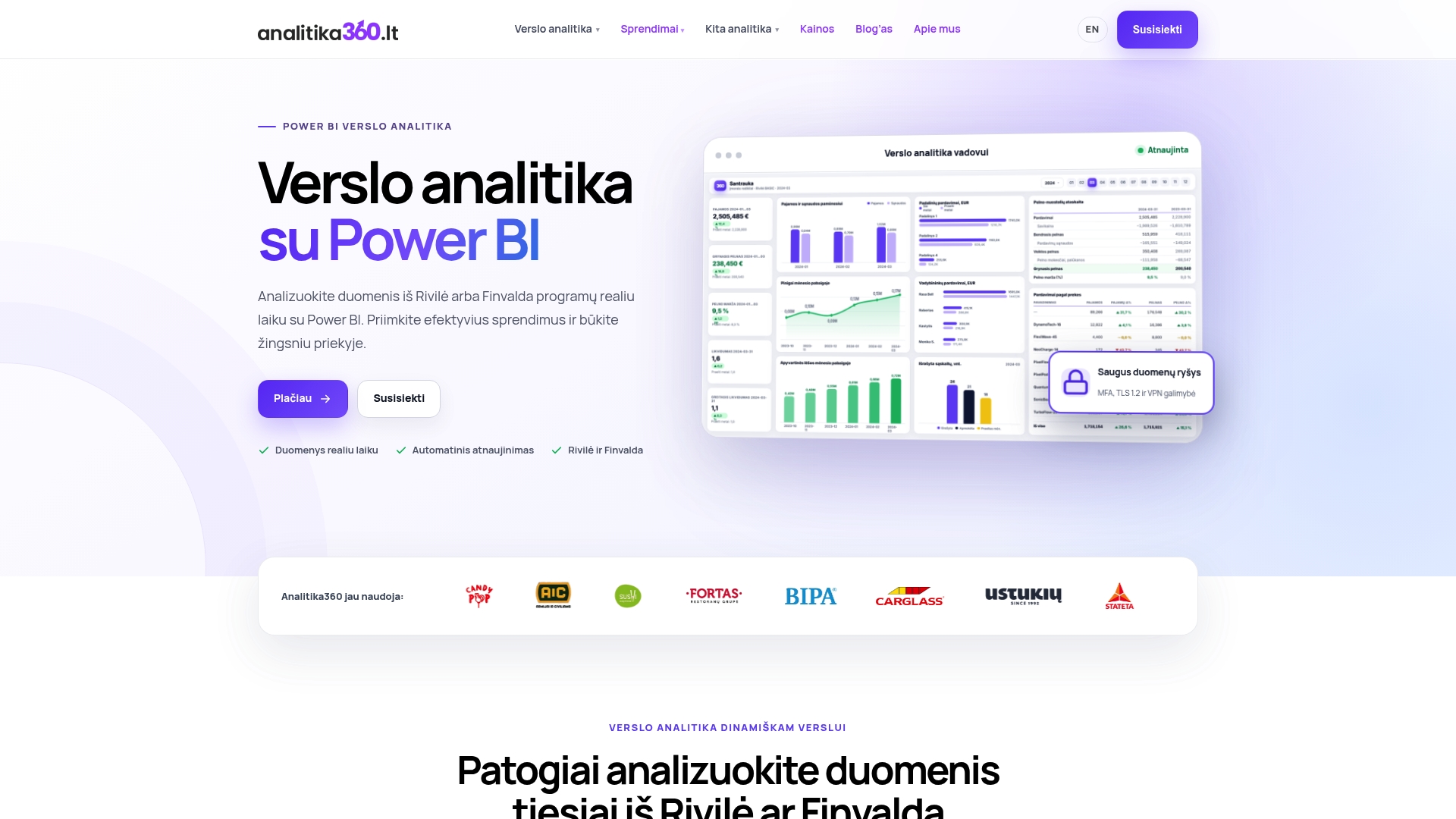
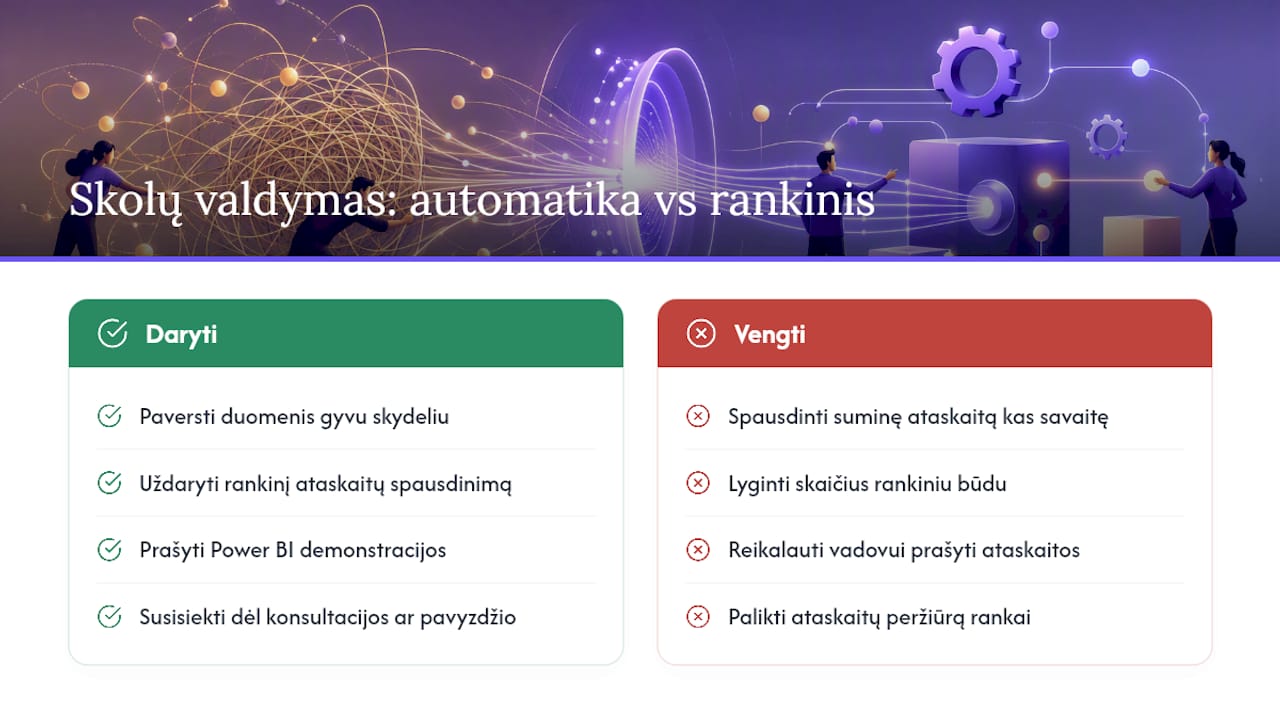
Without even changing Rivilė, where transactions and offsets continue to be handled, you can take the same data and turn it into a live dashboard that refreshes without anyone stepping in, doing away with manually printing the summary report and comparing figures every week. Take a look at Power BI report examples to see what a real-time overdue clients dashboard looks like.
A demo is worth requesting if you run several divisions, deal with dozens of clients at once, or simply want your manager to get a view of debts without having to ask the accounts team. Get in touch for a consultation or a sample report via the solutions page and work out how much time you would save each month.
Sources
You will find the detailed steps in Rivilė’s debt management guide, the reminder set-up description in the Rivilė GAMA guide and the payment creation instructions for summary debts. Find out more about Rivilė data analytics on the Analitika360 page.
- Clients and Debt Management - Rivile ERP modules - Rivile
- Payment reminders and reconciliation statements for clients | Rivile GAMA guide
- Automated debt offsetting / module description