Your business in 360°
 Version control in SharePoint: settings, history and restoring files
Version control in SharePoint works through version history. Every significant change to a file or list item is saved as a separate version, which you can view, compare and restore. In Microsoft 365 document libraries the feature is switched on from the start, whereas in lists and older SharePoint Server environments you often have to turn it on yourself. This guide explains how to choose settings that suit the way your team works, how to restore a file that has been changed by mistake, and why a tidy version history matters when Excel files held in SharePoint feed your Power BI reports.
In brief
- In Microsoft 365 libraries, version history is on by default and keeps up to 500 versions of a document.
- You can choose major versions only (1, 2, 3) or major and minor versions (1.0, 1.1, 2.0).
- To restore an earlier version, open “Version history” and select “Restore”.
- A limit on the number of versions saves storage space, while content approval and permissions determine who can see drafts.
- If a Power BI report uses a SharePoint file, version history helps you quickly find and undo an incorrect change to the data.
Contents
- What SharePoint version history keeps
- Major and minor versions
- How to turn on and configure versioning
- How to view, compare and restore a version
- How many versions to keep
- SharePoint Online and SharePoint Server: the differences
- Our view: version control as part of data quality
- Automated reports from SharePoint, Excel and your accounting system
- FAQ
- Sources
What SharePoint version history keeps
Version history lets you view, track and restore earlier versions of files or list items, so an unwanted change or accidentally deleted content no longer means a loss. The same feature provides traceability, making it easier for an organisation to meet internal audit and legal requirements.
Each version shows:
- when the file or item was changed;
- who changed it;
- when its properties (metadata) were changed.
It is important to understand when a version is created. According to Microsoft’s description of how versioning works, a new version appears when a file is uploaded, when the properties of an item or file are changed, and when changes to an Office document are saved. Not every save becomes a separate version, however. If several people are co-authoring an Excel file, the history will not show every click but consolidated save points.
Major and minor versions
A library can use one of two modes. In its guidance on planning versioning, Microsoft describes major versions as published content and minor versions as content still in progress.
| Feature | Major versions only | Major and minor versions |
|---|---|---|
| Numbering | 1, 2, 3 | 1.0, 1.1, 1.2, 2.0 |
| Who can see them | Everyone with read access | Readers see major versions; drafts are usually visible only to editors |
| Suitable for | Team working files, report sources | Policies, contracts and procedures that go through approval |
| Management effort | Low | Higher: a major version has to be published |
The rule of thumb is simple. If several people edit a file and everyone needs to see the latest content, major versions are enough. If a document must be reviewed before the whole organisation sees it, choose minor versions and, if needed, turn on content approval.
Changing the mode in a library that is already in use may cause version history to start or stop keeping certain information. It is therefore better to think the settings through before your team starts working heavily in the library, rather than once it already holds hundreds of files.
How to turn on and configure versioning
Settings in a list or library can only be changed by people with permission to manage lists. If you do not have these permissions, contact the site owner or your IT administrator.
In the modern SharePoint interface, the steps are as follows:
- Open the document library or list.
- Click the gear icon in the top right and select “Library settings” (for a list: “List settings”).
- If you see a condensed panel, select “More library settings”.
- Under “General Settings”, open “Versioning settings”.
- Choose a mode: no versioning, major versions only, or major and minor versions.
- Specify how many versions to keep and, if you use drafts, who can see them.
- If needed, turn on content approval and require check-out.
- Save your changes.
A detailed description in Lithuanian is available on Microsoft’s page on enabling and configuring versioning. It also notes that the number of versions kept and the visibility of drafts can be set separately for each list and library.
How to view, compare and restore a version
This is the most common scenario: someone has overwritten a column in a spreadsheet, deleted a sheet, or uploaded an old file with the same name. Putting it right takes less than a minute.
Viewing the history. In the library, right-click in the space between the file name and the date and select “Version history”. If you cannot see this command, you will find it under the “More” menu.
Comparing. In Word or Excel files you can open the history directly in the application and compare different versions: select a version and click “Compare”. This quickly shows you exactly what has changed.
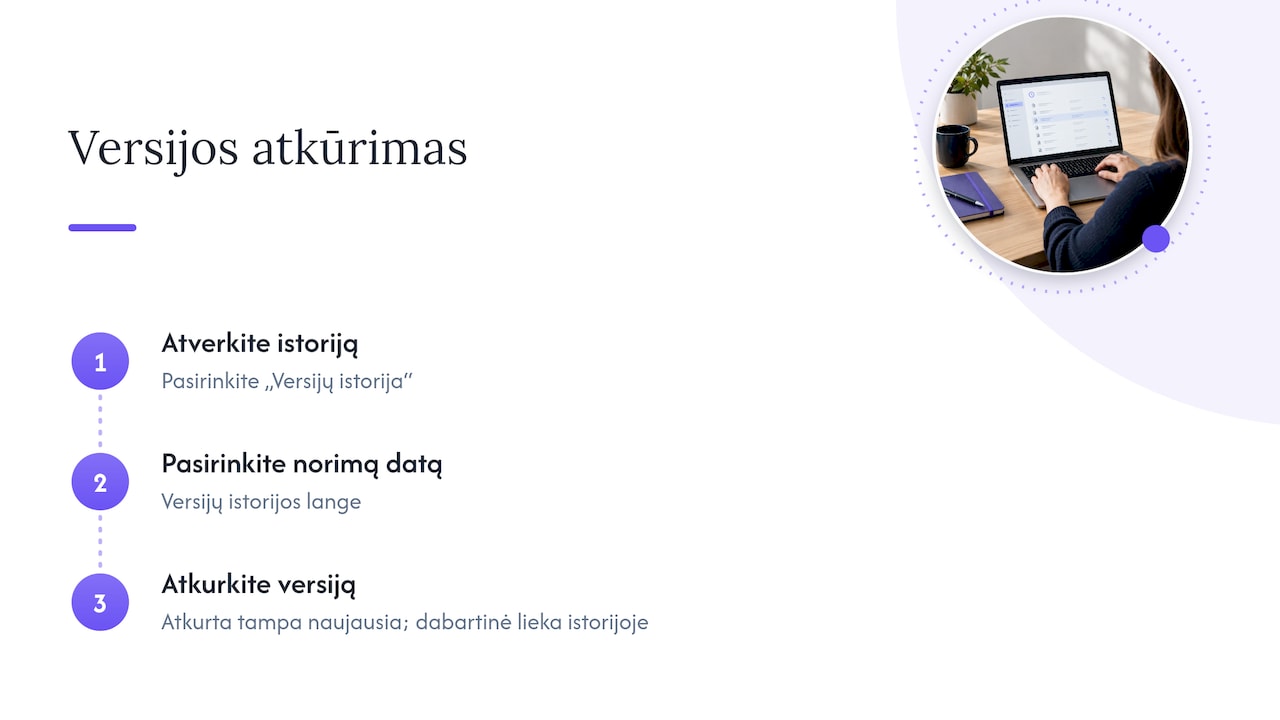
Restoring. In the version history window, hover over the date of the version you want, open the arrow menu and select “Restore”. The restored version becomes the latest one, while the current version remains in the history, so you can go back if necessary.
Tip: before restoring an old version of a file that other systems rely on (for example, a Power BI model or a Power Automate flow), let your colleagues know. Restoring changes the file’s content for everyone at once.
How many versions to keep
Every saved version takes up space. Version limit settings let you specify how many earlier versions to keep, and so control storage costs.
Microsoft 365 administrators can set default version limits for the whole organisation. These settings apply to newly created document libraries and OneDrive accounts; limits for existing libraries have to be changed separately.
How to choose the number:
- Frequently edited working files (sales plans, budget spreadsheets): keep enough versions to cover at least one full reporting period, such as a month or a quarter.
- Rarely changed documents (procedures, templates): a small number is enough, as there are few changes.
- Audited documents (contracts, financial policies): set the limit according to the company’s document retention policy, not according to what is convenient for storage.
SharePoint Online and SharePoint Server: the differences
The core logic is the same in both environments: major and minor versions, limits, approval and restoring. What differs are the default settings and the administration options.
| Aspect | SharePoint in Microsoft 365 | SharePoint Server 2010–2019 |
|---|---|---|
| Libraries | Versioning on, up to 500 kept | Often has to be turned on manually |
| Lists | Turned on in the list settings | Off by default |
| Organisation-wide limits | Set in the admin centre | No equivalent centralised setting |
| Interface | Modern, with a “More” menu | Classic ribbon |
If your company still runs an on-premises server, check which version is installed before changing settings, as the menu layout differs between them.
Our view: version control as part of data quality
Many of our clients use SharePoint to store not just documents but also Excel spreadsheets containing plans, budgets, additional ratios or manual adjustments. These files are often combined in a single Power BI model with data from Rivilė or Finvalda. When a report refreshes automatically, any incorrect change in a source file ends up on a manager’s dashboard within a few hours.
That is why we see version history as the first line of defence. When a figure in a report suddenly changes, the first thing we check is the source file’s history: who changed what, and when. Most of the time the problem is solved by restoring an earlier version and running the refresh again, without touching the model itself.
We recommend three things:
- Use a separate library with major versions only for report sources, so that Power BI always reads final content.
- Grant edit permissions only to those responsible for the data.
- Combine versioning with data quality monitoring in Power BI, so that unexpected changes are spotted before managers see them.
We cover how the data in document libraries themselves can be analysed in our article on SharePoint document reports in Power BI, and you can embed finished reports on a SharePoint page on your team site.
— Analitika360
Automated reports from SharePoint, Excel and your accounting system
Analitika360 builds Power BI report packages for Rivilė and Finvalda users and combines them with SharePoint and Excel sources in a single model. Revenue, costs, profit, debts and inventory figures refresh without any extra work on your part, and data security is in place from day one.
Basic packages cost €59 a month and PRO packages €89 a month, while bespoke projects tailored to your processes and IT systems are charged at €70 an hour. Compare the plans on the business analytics pricing page or take a look at the Power BI packages for Rivilė and Finvalda.
FAQ
Does version history work for folders?
No, versions are kept for files and list items. If an entire folder is deleted, its contents have to be restored from the recycle bin, not from version history. That is why it makes sense to keep important files in libraries with a clear structure and restricted permissions.
Can old versions be deleted?
Yes. In the version history window, each version has a menu with a “Delete” command. To do this in bulk, it is easier to lower the library’s version limit. Before deleting versions of audited documents, consult the person responsible for document retention.
Does restoring an old version remove the current one?
No. The restored version becomes the new latest version, and the previous current version stays in the history. If needed, you can restore it again in the same way.
Is SharePoint suitable for keeping versions of Power BI files?
Yes, .pbix files in a library get the usual version history, so you can go back to an earlier model. However, versions do not show what has changed inside the model, so it is worth adding a short description of the changes with each upload. For larger teams, it makes sense to agree a clear publishing procedure.
Sources
About version history, SharePoint in Microsoft 365 How versioning works in lists and libraries Plan document versioning, content approval, and check-out Enable and configure versioning for a list or library View the version history of an item or file in a list or library View previous versions of Office files Set default organization version limits