Your business in 360°
 Cohort Analysis in Power BI: From Data to a Retention Matrix

Cohort analysis in a Power BI report shows how many customers who first bought in the same month come back after one, three or twelve months, and how much revenue they bring in. All it needs is three fields from your sales data (customer code, document date and amount), a few DAX calculations and a matrix visual. This guide covers the whole process: what data to prepare, which formulas to use, how to read the result and which mistakes to avoid when the data comes from Rivilė or Finvalda.
In brief
- A cohort is a group of customers grouped by the month of their first purchase. Its behaviour is tracked month by month.
- The Power BI model needs the customer code, sale date, amount and a date table.
- The core DAX tools are CALCULATE, DATEDIFF and DISTINCTCOUNT.
- The result is presented in a matrix: rows are cohorts, columns are months since first purchase, and values are the retention percentage or revenue.
- The analysis is only worthwhile if it refreshes automatically and leads to concrete action.
Contents
- What cohort analysis is and what it shows
- What data you need
- A cohort model in Power BI: step by step
- How to build and read a cohort matrix
- Beyond retention: revenue, basket size and margins
- Common mistakes and how to avoid them
- Our view
- A cohort report for your Rivilė or Finvalda data
- FAQ
- Sources
What cohort analysis is and what it shows
Headline figures such as monthly turnover or the number of active customers often look stable even when significant changes are happening beneath the surface. Cohort analysis splits customers into groups according to when they first bought, letting you see trends that overall averages conceal: declining loyalty, the effect of a campaign or the consequences of a change in product range.
Practical questions a cohort report answers:
- Do new customers come back? If 40% of the January cohort are still buying after three months but only 25% of the June cohort, something has changed: the service, the pricing or the type of customer being attracted.
- Did the campaign bring in the right customers? A cohort from a promotion month may be large but melt away quickly.
- When do customers stop buying? The steepest drop often comes in the second or third month, which is exactly when it pays to remind them you exist.
- What is a customer worth over a year? A cohort’s cumulative revenue shows a customer’s real value rather than the result of a single month.
It is important to be clear about what cohort analysis does well. It is excellent at showing what changed and when, and it helps you form hypotheses. The cause is usually confirmed by further work: a conversation with the sales team, a review of the campaign calendar or a controlled experiment.
What data you need
A cohort model does not require complex infrastructure. Line-level sales data, which your accounting software already stores, is enough.
| Field | Purpose | Where to get it |
|---|---|---|
| Customer code | Unique customer identifier | Customer field on sales documents |
| Document date | Identifying the purchase month | Invoice or receipt date |
| Amount excluding VAT | For revenue cohorts | Sales line or document amount |
| Credit document flag | Separating returns | Document type |
| Date table | Time analysis and filters | Created in the Power BI model |
| Months table (0–12) | Matrix columns | Created in the Power BI model |
If you record sales in Rivilė, these fields are usually already present on the sales documents; we described how to prepare them for reporting in our article on Rivilė sales analysis with Power BI. For Finvalda users, the same groundwork is covered in the Finvalda sales analysis guide.
One condition is essential: the history must be complete. If you load only the last two years into the model, a customer who also bought five years ago will be wrongly assigned to a new-customer cohort.
A cohort model in Power BI: step by step
Below is a simple, reliable approach using calculated columns. In the example, the table is called Pardavimai (Sales).
1. First purchase date for each customer.
Pirmas pirkimas =
CALCULATE (
    MIN ( Pardavimai[Data] ),
    ALLEXCEPT ( Pardavimai, Pardavimai[KlientoKodas] )
)
2. Cohort month. We round the date down to the first day of the month so that all customers who started in that month fall into one group.
Kohorta =
DATE ( YEAR ( Pardavimai[Pirmas pirkimas] ), MONTH ( Pardavimai[Pirmas pirkimas] ), 1 )
3. Month number since first purchase. The DATEDIFF function returns the number of interval boundaries crossed between two dates, so with MONTH it counts calendar months precisely.
Mėnesio Nr =
DATEDIFF ( Pardavimai[Kohorta], Pardavimai[Data], MONTH )
4. Measures. DISTINCTCOUNT counts the unique values in a column, so a customer with several invoices in a month is counted only once.
Aktyvūs klientai = DISTINCTCOUNT ( Pardavimai[KlientoKodas] )

Kohortos dydis =
CALCULATE ( [Aktyvūs klientai], Pardavimai[Mėnesio Nr] = 0 )

Retencija % = DIVIDE ( [Aktyvūs klientai], [Kohortos dydis] )

Kohortos pajamos = SUM ( Pardavimai[Suma] )
5. Months table. If you want the matrix to show empty months too, create a separate table with values from 0 to 12 and relate it to the Mėnesio Nr column. For large tables it is worth moving the calculations into Power Query or a data warehouse so the model runs faster; we explained when that is necessary in our article on the Power BI data warehouse.
How to build and read a cohort matrix
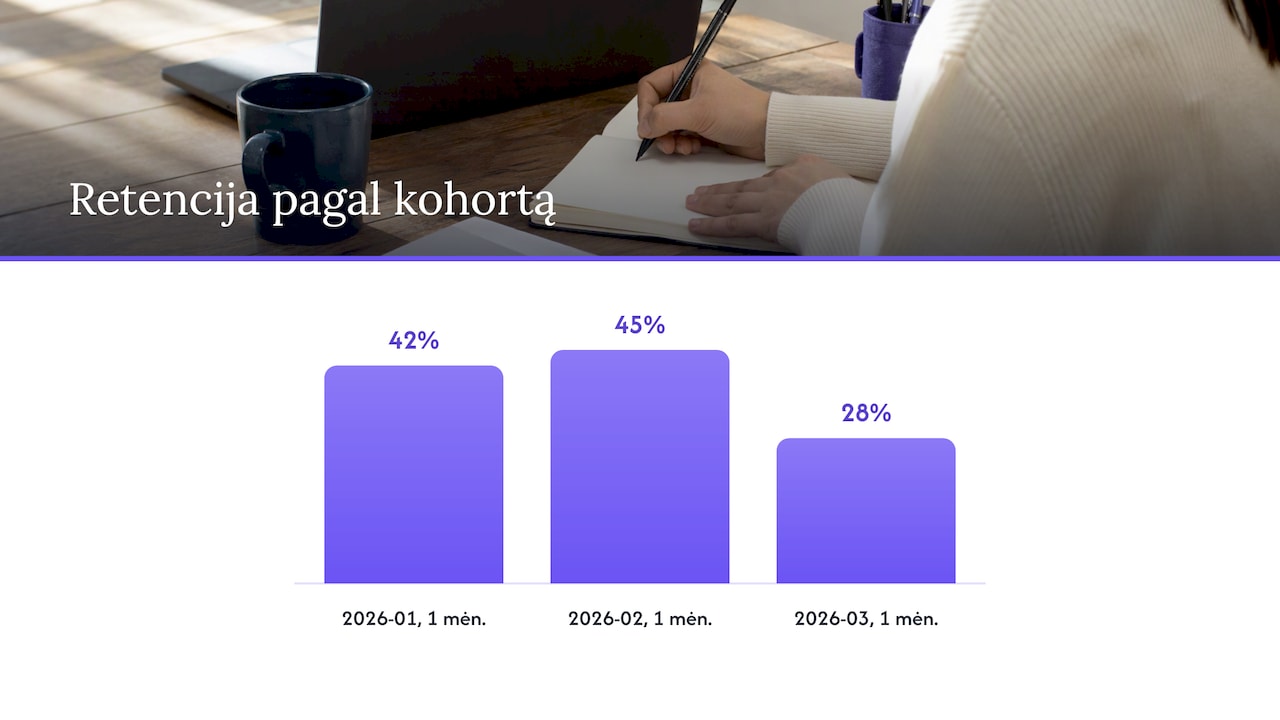
In the matrix visual, put Kohorta (formatted as “2026-01”) in rows, Mėnesio Nr in columns and the Retencija % measure in values. Then turn on conditional formatting with a colour gradient: a darker cell means higher retention, and drops stand out immediately.
An illustrative example of what the result looks like:
| Cohort | Customers | Month 0 | Month 1 | Month 2 | Month 3 |
|---|---|---|---|---|---|
| 2026-01 | 120 | 100% | 42% | 35% | 31% |
| 2026-02 | 95 | 100% | 45% | 37% | 33% |
| 2026-03 | 180 | 100% | 28% | 20% | 17% |
Read the matrix in three directions:
- Across a row: how a single cohort shrinks over time. Where the curve flattens out, you are left with a core of loyal customers.
- Down a column: how different cohorts compare at the same age. In the example, the March cohort is the largest, but only 28% came back after a month: a typical sign of a big discount promotion.
- Diagonally: cells corresponding to the same calendar month. If all cohorts drop at the same time, the cause is most likely external: seasonality, a supply disruption or a price change.
Microsoft uses the same principle in more sophisticated solutions: in the customer churn architecture in Microsoft Fabric, cohort analysis helps assess churn risk while Power BI dashboards display the metrics. For most companies in Lithuania, a standard Power BI model with regularly refreshed accounting data is sufficient.
Beyond retention: revenue, basket size and margins
Customer counts are only the first layer. The same matrix can be filled with other measures:
- Cohort revenue by month shows whether returning customers buy more or less than they did the first time.
- Cumulative revenue per customer (revenue divided by cohort size, as a running total across months) reveals how much a customer brings in over 6 or 12 months. This figure is worth comparing with acquisition cost.
- Average basket size helps you spot whether customers are trading down to cheaper products.
- Gross margin by cohort shows whether customers acquired during a promotion are profitable at all.
Restaurant chains can build cohorts from the loyalty card code and first visit; wholesale businesses from the buyer code. Cohorts are also worth segmenting: by region, sales manager or the product group of the first purchase. The last of these can be combined with ABC analysis in Power BI to see which product groups attract the customers who stay longest.
Common mistakes and how to avoid them
- Misleading figures in the “Total” row. DISTINCTCOUNT is not additive: the overall total may not match the sum of the categories, because each customer is counted only once. This is not an error, but it is worth switching off totals in the matrix or labelling them clearly.
- An incomplete final month. The current month’s column always looks worse. Filter to completed months only.
- The same customer under several codes. Standardise customer codes before the analysis, otherwise one customer will turn into several new ones.
- Returns and credit notes. Separate them so that a return is not treated as a purchase.
- Manual refresh. If data is exported to Excel once a month, the matrix quickly goes out of date. Set up a scheduled Power BI refresh, and for an on-premises database use the Power BI data gateway.
- A report without action. For every problem you spot, assign a responsible person and an action: a reminder in the second month, an offer to inactive customers, a service review.
Our view
Cohort analysis is one of the most useful finance and sales metrics, yet it often remains a one-off Excel project. Someone spends a few days building a spreadsheet, and a month later it is already out of date.
Our experience with Rivilė and Finvalda data shows that the value comes not from the formula itself but from the reliable data model underneath it: correctly matched customers, returns separated out, a complete history and automatic refresh with no extra work. Once that foundation is in place, the cohort matrix becomes just another page in the report that a manager opens alongside revenue, profit and debts.
That is why we recommend starting with a solid sales model and adding cohorts as its natural extension. That way the company can see continuously how customer behaviour is changing and respond faster.
Analitika360
A cohort report for your Rivilė or Finvalda data
Analitika360’s ready-built Power BI report packages for Rivilė and Finvalda users automatically bring sales, revenue, expenses and debt data together into a single model that refreshes without any manual work. The Basic plan costs €59 a month and the PRO plan €89 a month.
If you need a cohort matrix tailored to your customer structure, segments or additional sources such as a CRM or Excel, we can build it as a bespoke project at €70 an hour. Compare the plans and get in touch on our business analytics pricing page.
FAQ
How does cohort analysis differ from a standard sales report?
A standard report shows how much you sold over a period. Cohort analysis shows how a specific group of customers behaves from their first purchase onwards, so you can see whether customers return and how much they bring in over time.
Do I need a Power BI Pro licence for cohort analysis?
The model itself can be built in Power BI Desktop. To share the report with colleagues and refresh it automatically in the Power BI service, you will usually need Pro or Premium licences, which we can supply together with the solution as required.
How much data history do I need?
To see annual retention, you need at least 12 completed months after the first cohort analysed. To identify each customer’s first purchase, load all the sales history you have.
Can cohorts be built on something other than months?
Yes. Cohorts can be grouped by week, by quarter or by behaviour, for example by the product group or channel of the first purchase. The formulas stay the same; only the grouping column changes.
Sources
- Stripe: Cohort analysis for businesses
- Microsoft Learn: DATEDIFF function (DAX)
- Microsoft Learn: DISTINCTCOUNT function (DAX)
- Microsoft Learn: Conditional formatting in Power BI visuals
- Microsoft Learn: Customer Churn Architecture with Fabric Real-Time Intelligence