See more. Decide better.
 DirectQuery or Import: How to Choose the Right Power BI Mode

In most cases Import remains the faster and more flexible choice, because the data is stored in the model and reports work without a permanent connection to the source. DirectQuery is worth choosing when you need near real-time figures, or when security or governance requirements mean a copy of the data cannot be kept. Between these two extremes sits Dual mode, and the final decision always comes down to your database infrastructure and how often the data needs refreshing.
In brief:
- When the dataset fits in memory and a few refreshes a day are enough, Import mode lets you build more complex calculations than DirectQuery mode does.
- Choose DirectQuery only when near real-time data is essential and the database has suitable indexes, because every change of filter sends it a new query.
- A DirectQuery query that returns more than 1,000,000 rows can trigger a Power BI error, so plan aggregations and filters while you are still designing the model.
- In a composite model, keep historical fact data in Import, pass the most recent data through DirectQuery, and set dimensions to Dual mode so they work with both.
- Before rolling out DirectQuery, check that your connector supports it, configure a data gateway and test the usual filter combinations while monitoring response times and database load.
Contents
- Technical differences: what happens in Import and in DirectQuery mode
- When to choose Import and when DirectQuery: a checklist
- DirectQuery performance risks and how to manage them
- Composite, Dual and Hybrid: how to combine both modes
- Practical implementation: gateway, SSO, folding and testing
- Analitika360’s experience with Import and DirectQuery
- Editorial recommendations for different users
- What Analitika360 offers: ready-built Power BI packages
- Frequently asked questions
- Sources
Technical differences: what happens in Import and in DirectQuery mode
When you choose Import, Power BI copies the data into its internal store, known as VertiPaq, and compresses it in a columnar format. The report then runs entirely independently of the original source: users see the data as it stood at the last refresh. The Microsoft Learn documentation explains that Power BI supports three main model modes: Import, DirectQuery and the composite model, which combines the two in a single solution.
DirectQuery works differently: every visual in the report generates its own query, which is sent straight to the source database. The data never stays in the Power BI model, so every filter or slicer places fresh load on the source.
This has direct consequences for modelling:
- Power Query folding becomes essential: transformations must fold into a single native query, otherwise DirectQuery forces the system to carry out operations that do not scale.
- Some complex DAX functions and transformations that work freely in Import either do not work in DirectQuery mode or severely limit the model’s flexibility.
- In Import, refreshes need their own schedule, whereas DirectQuery data essentially always reflects the latest state of the source.
In practice this means Import models give you more freedom to experiment with calculated columns and complex measures, while DirectQuery models call for much more careful design right from the start.
When to choose Import and when DirectQuery: a checklist
The decision is rarely clear-cut, so it pays to work through a few criteria systematically rather than going on instinct.
- Data volume and refresh frequency. If the dataset fits within memory limits and a few refreshes a day are enough, Import will almost always be the simpler and faster solution.
- Latency requirements. If a business process needs to see changes within minutes rather than hours, DirectQuery or automatic page refresh becomes a necessity.
- Security, RLS and restrictions on data copies. Where regulation or internal policy prohibits keeping a copy of the data outside the source system, DirectQuery remains the only realistic option; this question often overlaps with GDPR requirements, which are worth assessing together with your IT team.
- Infrastructure capacity. A DirectQuery scenario needs a well-indexed data store: an OLTP system built for day-to-day operations often cannot cope with analytical load without a separate data warehouse.
- Licence and refresh limits. Pro, Premium Per User and Premium plans differ in the number of refreshes allowed per day, which directly affects whether Import can meet the business’s need for fresh data at all.
Pro tip: before choosing DirectQuery, first check that your database has suitable indexes on the most frequently used columns, because without them even a small report can become slow.
DirectQuery performance risks and how to manage them
DirectQuery’s convenience comes at a price: every user interaction with the report, from clicking a filter to choosing a slicer value, sends a new query to the source. A practical analysis of DirectQuery’s impact on SQL Server shows that without proper database optimisation and indexing, this load soon forces a return to Import or a search for a managed solution.
According to the Microsoft Learn documentation, if a DirectQuery query returns more than 1,000,000 rows, Power BI may throw an error. This means aggregations and filters need to be planned at the modelling stage, not fixed after users start complaining about speed.
A few strategies that reduce the risk:
- Use pre-calculated aggregations so that the most common queries do not hit the raw table.
- Enable automatic page refresh only when a near real-time view is genuinely needed, as frequent refreshes put additional load on the source.
- Apply incremental refresh in hybrid models, so that historical data stays in Import and only the most recent portion goes through DirectQuery.
- Diagnose problems with Power BI Desktop’s tracing tools and SQL Profiler to see which queries are actually loading the database.
These measures do not mean DirectQuery will always be slow, but they do show that it requires ongoing maintenance rather than a one-off set-up.
Composite, Dual and Hybrid: how to combine both modes
A composite model lets you combine Import and DirectQuery tables in the same Power BI file, so you do not have to commit to one approach for the whole model. The Data School explains that Dual mode allows a dimension table to behave as Import or DirectQuery, depending on the query that reaches it.

This flexibility solves a specific problem: when the fact table is in DirectQuery and a dimension is Import only, Power BI sometimes rejects certain relationships because of so-called restricted relationships. Dual mode reduces this problem, as the dimension can adapt to both sides.
In practice, a well-designed composite model usually looks like this:
- Dimensions (customers, products, calendar) are kept in Dual mode so they serve both sides equally well.
- Historical fact data is imported and refreshed less often, as its values do not change over time.
- The most recent fact records stay in DirectQuery or go through incremental refresh to reflect the latest state.
For larger lakehouse or data warehouse scenarios, it is also worth knowing about Hybrid tables and the Direct Lake alternative, which let you manage ‘hot’ and ‘cold’ data dynamically without switching between modes manually.
Practical implementation: gateway, SSO, folding and testing
Before moving to DirectQuery or a composite model, it is worth working through a few checks in order to avoid surprises in production.
- Check whether your data source connector supports DirectQuery at all, as not every connector handles it equally well.
- Configure a data gateway if the database is not directly reachable from the internet, and check the network bandwidth between Power BI and the source.
- Set up SSO (single sign-on) so that users’ permissions in the database match their permissions in the Power BI report, rather than being managed through a shared technical account.
- Review the Power Query steps and check that they really fold into a single query; complex M code steps often break folding without any clear warning.
- Test the model with real user scenarios, monitoring response times and database load before releasing the report to the whole organisation.
Pro tip: run the Power BI Desktop tracing tool alongside several typical filter combinations that business users will actually use, not just the simplest single scenario.
Once these steps are done, it is also worth reviewing the scheduled refresh limits, as they directly determine how often the Import part of the model can refresh.
Analitika360’s experience with Import and DirectQuery
When working with Rivilė and Finvalda data, we usually choose Import as the default, because accounting system data changes infrequently enough that automated refresh, with no extra work for users, fully meets the business’s needs. When a client needs to combine several sources, for example the accounting system with SharePoint or Excel files, a composite model lets each source sit in the most suitable mode rather than forcing everything into a single standard.
We recommend DirectQuery less often, and only when the infrastructure is ready for it: a sufficiently powerful database, clear indexes and a genuine need to see changes almost immediately, such as monitoring warehouse stock levels in a high-turnover business.
Editorial recommendations for different users
Analysts should start with Import and move to DirectQuery only when a specific latency requirement arises. For IT managers, it makes sense to assess database capacity and security policy in advance, rather than reacting after the first slowdown. For accountants, a well-planned Import with a clear refresh schedule is usually enough. When the solution becomes complex, it is worth trying a small proof-of-concept (POC) model before rolling it out across the organisation.
— Analitika360
What Analitika360 offers: ready-built Power BI packages
If you would rather not make these decisions while juggling day-to-day work, we offer ready-built report packages already designed in the right mode for your accounting system. Rivilė Basic and Finvalda Basic include Import-based reports with automated refresh, while the PRO packages and bespoke projects let you tailor the model to more complex, multi-source scenarios.
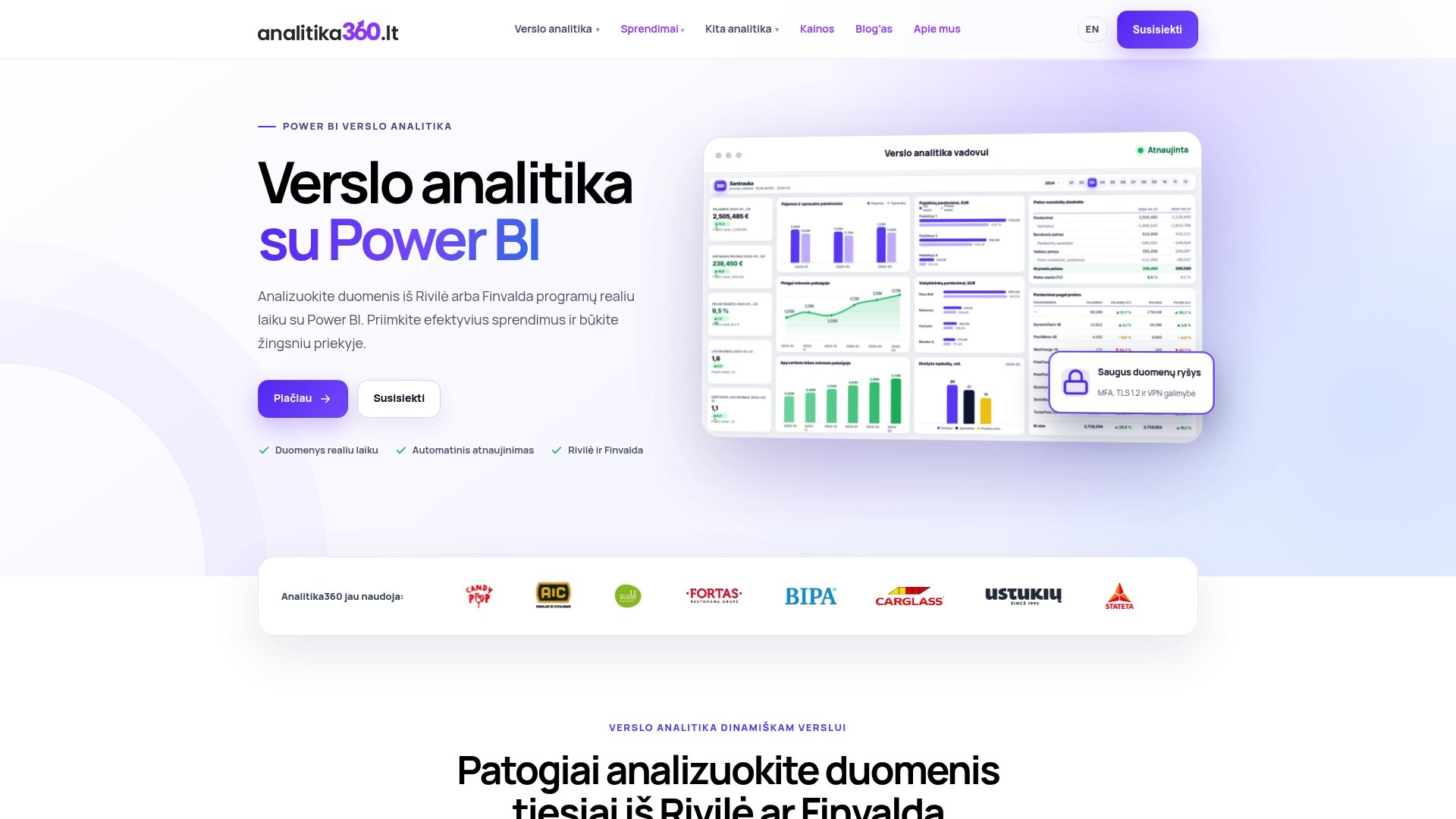
You will find full pricing and PRO plan terms on the business analytics pricing page, where you can also get in touch about a bespoke solution for your system.
Frequently asked questions
How does Import differ from DirectQuery in Power BI?
Import copies the data into the Power BI model and compresses it, so the report works without a permanent connection to the source. DirectQuery turns each visual into a separate query sent straight to the database, as described in the Microsoft Learn documentation.
When is it worth choosing DirectQuery instead of Import?
DirectQuery is suitable when you need near real-time data, or when security or governance requirements mean a copy of the data cannot be kept. It is also relevant when the data volume exceeds practical Import limits.
What is the DirectQuery row limit per query?
According to Microsoft Learn, if a DirectQuery query returns more than 1,000,000 rows, Power BI may throw an error. For this reason, aggregations and filters need to be planned at the model design stage.
What is Dual mode and what is it useful for?
Dual mode allows a dimension table to behave as Import or DirectQuery depending on the query, as The Data School explains. It reduces restricted relationship problems in composite models and improves overall report performance.
Do Analitika360 packages run in Import or DirectQuery mode?
Our ready-built Rivilė and Finvalda packages are Import-based with automated refresh, and for more complex scenarios we offer bespoke solutions using a composite model. We agree the architecture for each case based on the client’s database and refresh needs.
Sources
- Semantische Modelle im Power BI-Dienst - Power BI | Microsoft Learn
- Power BI storage modes explained - Import, DirectQuery and Dual