Your business in 360°
Parameterised Power BI Reports: Creation and Management

A parameterised Power BI report is one in which the data source, period, company or another condition is controlled by a single predefined value rather than by query steps rewritten by hand. Power Query parameters are the usual tool for this: you create them once, write them into your queries, and later, when you change a parameter’s value, the report picks up different data without any further reprogramming. Below you will find how a parameter differs from a filter, how to create and use one, how to change values in a report that has already been published, and which mistakes are worth avoiding.
In brief
- A parameter is a stored, reusable value that dynamically changes a query’s result, its transformations or its data source.
- A filter restricts data already loaded into the report, whereas a parameter determines which data gets loaded in the first place.
- A parameter is created in the Power Query editor via Home > Manage Parameters > New Parameter.
- Once a report is published, parameter values can also be changed in the service, but the change only takes effect after a data refresh.
- The biggest business benefit: the same model works with different servers, companies or environments (test and production) without the report having to be rebuilt.
Contents
- What a parameterised report is
- Where parameters help in business reporting
- How to create a parameter in the Power Query editor
- How to use a parameter in a query
- Changing parameters after publishing a report
- Permissions, credentials and the data gateway
- The most common mistakes and how to avoid them
- Our view
- Ready-built report packages for Rivilė and Finvalda users
- FAQ
- Sources
What a parameterised report is
Microsoft’s documentation defines a parameter as a way to store and reuse a value that dynamically changes a query’s output. That value might be a server name, a database name, a file path, a date, a company code or any other argument.
One important feature: parameters are stored separately from data queries, so the same parameter can be used in several queries and at any step within them. Change one value and every query that depends on it changes too.

Parameter or filter: how they differ
The two are often confused because both “restrict” data. They operate at different levels of the report, however.
| Criterion | Power Query parameter | Report filter |
|---|---|---|
| Where it works | During data loading and transformation | In the model once data is loaded |
| What it controls | Source, connection, path, transformation arguments | Rows shown in visuals |
| Who changes it | Report developer or administrator | Report user |
| When it takes effect | After a data refresh | Immediately |
| Effect on model size | Can reduce the volume of data loaded | Does not change model size |
| Typical use | Test and production environments, choice of company | Selecting a month, department or customer |
A simple rule: if users need to see different cuts of the data by clicking buttons, choose a filter or slicer. If the whole report needs to draw on a different source or a different dataset, choose a parameter.
Where parameters help in business reporting
In accounting and finance reports, parameters solve several everyday problems:
- Switching environments. Professional Power BI guides describe how parameters are used to switch the data source, for example from a test environment to production, without changing the query logic itself.
- Several companies in one model. For groups in which each company has its own accounting database, a parameter holding the database name lets the same set of reports serve every company.
- File paths. When some of the data comes from Excel or SharePoint files, the folder path is kept in a parameter. If the files move, you change one value rather than dozens of queries.
- Period boundaries. A parameter holding a start date lets you load, say, only the last few years of transactions and keep the model fast.
- Budget versus actual scenarios. The budget version (original, revised) can be a parameter that specifies which budget table to load. We write more about this kind of model in our article on budget comparison in Power BI.
How to create a parameter in the Power Query editor
Following the Microsoft Learn instructions, you create a parameter as follows:
- In Power BI Desktop, open Transform data to launch the Power Query editor.
- On the Home ribbon, choose Manage Parameters and click New Parameter.
- Enter a clear name, for example
Serveris,DuomenuBazeorPradziosData. - Choose the data type (Text, Date, Decimal Number and so on). The type must match the place where you will use the parameter.
- Specify the Current Value. If you want to restrict the choices, you can provide a list of allowed values.
- Confirm. The parameter will appear in the query list as a separate object.
An existing query that returns a single value can also be converted into a parameter. This is handy when the value has already been calculated in another step.
Names that save time
Avoid Lithuanian letters with diacritics and spaces in parameter names: in the M language they would have to be wrapped in quotation marks. A short, unambiguous name (Imone, Aplinka, Aplankas) will still make sense to another analyst a year from now.
How to use a parameter in a query
A parameter can be entered as an argument to a transformation or data source function, or passed to a custom function. In practice, the most common thing to change is the connection to a SQL database:
let
    Saltinis = Sql.Database(Serveris, DuomenuBaze),
    Operacijos = Saltinis{[Schema="dbo", Item="Operacijos"]}[Data],
    Atrinkta = Table.SelectRows(Operacijos, each [Data] >= PradziosData)
in
    Atrinkta
Here Serveris and DuomenuBaze determine which database the query connects to, while PradziosData selects only the rows for the required period. If the source supports query folding, the selection is carried out on the server itself and less data is loaded into the model.
On the same principle, a parameter can be used in filtering, column renaming or merge steps. When a custom function receives a parameter as an argument, a single function can, for example, process each company’s file using the same logic.
Dynamic M query parameters
A separate option is dynamic M query parameters: the parameter is bound to a report slicer, and the user’s selection is passed straight into the source query. Microsoft advises against concatenating M parameter values into the query text as a plain string; instead, use M operations that fold into the source query, or the source language’s own parameter-passing mechanism. This protects against unexpected queries and the risk of data leakage.
Changing parameters after publishing a report
In a published report, parameter values are usually changed by the report owner in the dataset settings, or automatically via the API. Microsoft’s “Update Parameters” API lets you change a dataset’s parameter values programmatically, which is why it is used by teams that automate deployment between environments.
The key thing to know is that changing a parameter does not switch the report over in real time. According to the same documentation, with enhanced dataset metadata you must refresh the dataset to apply the new values, and without it you need to wait 30 minutes before refreshing. It is therefore worth planning parameter changes alongside the refresh schedule: first change the value, then run the refresh and check the results.

Permissions, credentials and the data gateway
A parameter does not grant access on its own. When a parameter switches the server or database, the Power BI service needs valid credentials for the new source, and on-premises servers require a configured gateway. We explain how it works and how to install it in our guide to the Power BI data gateway.
Before granting the right to change parameters, be clear about who may edit dataset settings. An incorrectly changed database value could show one company’s data to the wrong audience. We discuss the allocation of roles and responsibilities in our article on Power BI governance and data security.
The most common mistakes and how to avoid them
- Wrong data type. If a parameter is of the Text type but is compared with a date column, the query will return an error or an empty result. Set the type when creating the parameter and check it after every change.
- The parameter is applied to the wrong query. Filtering in a helper query is of no use if a different query is loaded into the model. Check that the parameter affects the very table that gets loaded.
- Broken query folding. Some transformation steps force Power Query to process data locally rather than on the server. Place parameter-based filters as close to the source step as possible.
- Forgetting to refresh. If you change a value in the service but do not refresh the data, the report will show the old figures.
- Unchecked results. After switching the source, compare the key totals with the accounting software. Our data quality checklist helps with this.
Our view
Parameters are one of those features that separate a one-off report from a system the business relies on every day. When connections, paths and periods are controlled by parameters, a set of reports becomes reusable: the same model can be adapted to another company, another server or a new department in a matter of minutes.
This is exactly how we build our Power BI report packages for Rivilė and Finvalda users, so that the data refreshes automatically with no extra work for the user. A finance manager or accountant does not need to know where a parameter sits or how the M language works: they see revenue, costs, profit, outstanding balances and stock, while we look after the technical side.
Where a company has other sources as well, such as SharePoint, Excel, a CRM or a logistics system, we combine them into a single Power BI model and fit it to existing processes and IT systems.
Analitika360
Ready-built report packages for Rivilė and Finvalda users
If you want parameterised, automatically refreshing analytics without building a model yourself, Analitika360 offers ready-built Power BI report packages for Rivilė and Finvalda. Basic plans cost €59 a month, PRO plans €89 a month, and bespoke projects tailored to your processes are charged at €70 an hour.
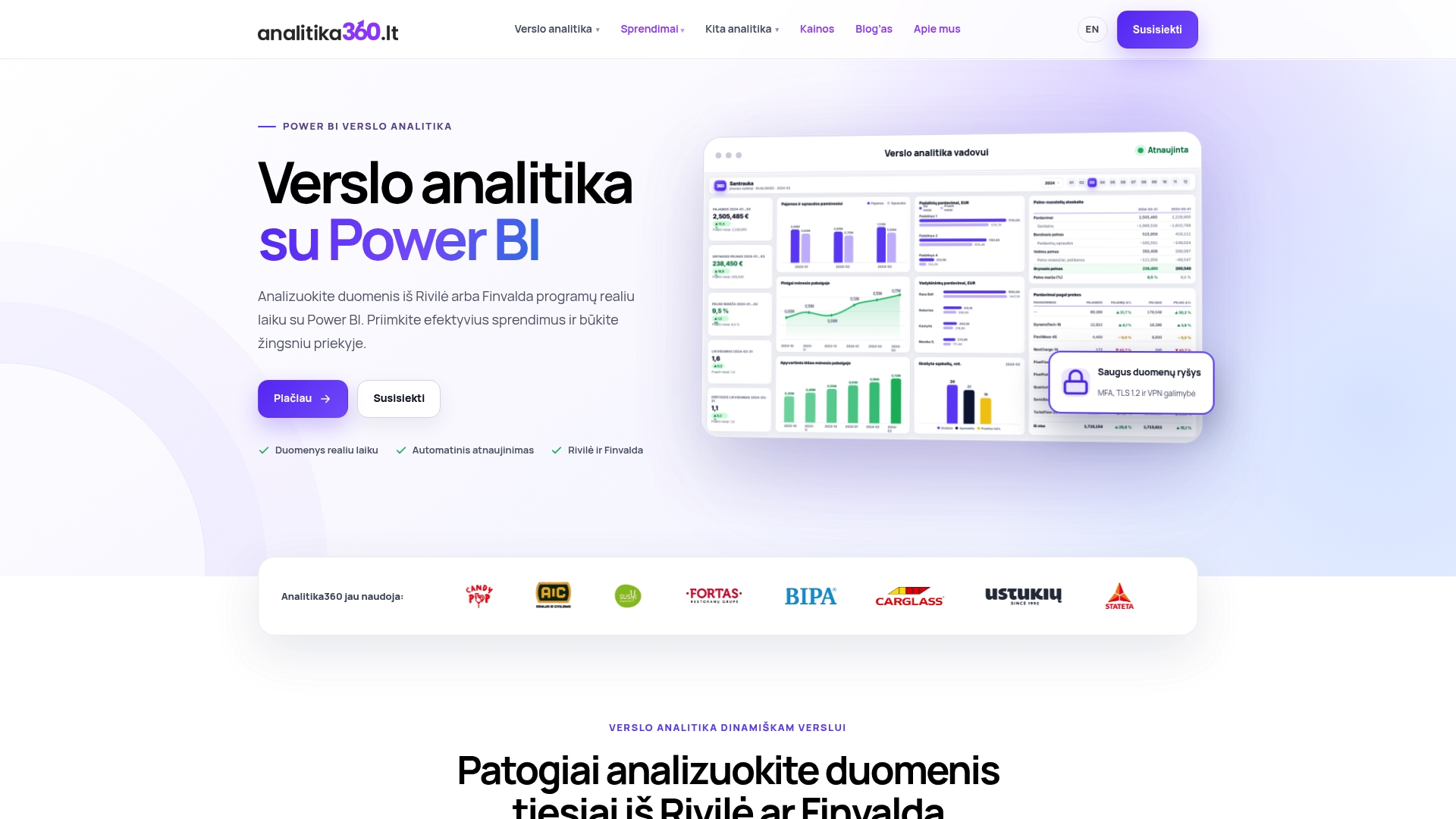
Compare the plans on our business analytics pricing page or find out more about the Rivilė, Finvalda and Power BI packages. Finvalda users who want to connect directly to the database will find our guide to Finvalda SQL and Power BI useful.
FAQ
Does a parameterised report update in real time?
No, a changed parameter value only takes effect after the dataset is refreshed. Microsoft’s documentation states that without enhanced metadata you need to wait 30 minutes before refreshing. Power BI refreshes the data itself according to the schedule you set.
Can report users change a parameter themselves?
Standard Power Query parameters are changed by the report developer or owner. Where users need to choose a value within the report, slicers, filters or dynamic M query parameters bound to a slicer are used.
How are parameters useful for a group of companies?
A parameter holding the database or company name lets you use one report model for every company in the group. Change the value and the same report shows another company’s data, with no need to create a separate copy for each company.
Can parameters be used with Excel and SharePoint files?
Yes. The file or folder path is kept in a parameter, so if the files move you only need to change one value. In the service, the source still needs valid credentials.
Sources
Parameters – Power Query, Microsoft Learn Create a parameter query (Power Query), Microsoft Support Parameterizing Power BI Solutions, O’Reilly Datasets – Update Parameters, Power BI REST API Dynamic M query parameters in Power BI Desktop, Microsoft Learn