Your business in 360°
 Accounting Reports in Power BI: What to Show and How to Automate Them

Accounting reports in Power BI draw on the same profit and loss, balance sheet, debt and cash flow data you already hold in Rivilė or Finvalda, only presented interactively and refreshed automatically. Instead of exporting to Excel every month, a manager or accountant opens a single report, chooses the period, department or customer, and sees the figures straight away. In this article we explain which reports are worth moving first, how the data technically reaches Power BI, what licensing and security limits apply, and when a ready-built package is the better choice and when a bespoke project makes more sense.
TL;DR
- Power BI does not replace your accounting software: it reads the data from Rivilė or Finvalda and turns it into analysis you can filter and compare.
- The reports most worth automating first are the profit and loss statement, the balance sheet, receivables and payables, and cash flow.
- If the accounting database sits on the company’s own server, automatic refresh requires a data gateway.
- The number of refreshes a day depends on the licence: Pro allows up to 8, while Premium and Fabric capacities allow up to 48.
- A ready-built package for Rivilė or Finvalda users goes live faster than reports built from scratch, because the data model already exists.
Contents
- How a Power BI report differs from a report in your accounting software
- Which accounting reports to move first
- How data gets from Rivilė or Finvalda into Power BI
- Access rights and data security
- Why reports slow down and how to prevent it
- SAF-T and internal analytics: different purposes
- Ready-built package or reports built from scratch
- Our view
- Analitika360 packages for Rivilė and Finvalda users
- FAQ
- Sources
How a Power BI report differs from a report in your accounting software
Accounting software is built to ensure transactions are recorded correctly and in line with the rules. Its reports answer the question “how much?”: what the turnover is, what the balance is, how much a customer owes. Power BI answers the questions “why?” and “where?”: which department saw its margin fall, which customers consistently pay late, how this year’s costs compare with last year’s.
The practical differences:
- Interactivity. With a single click you move from overall profit to an account, and from the account to an individual document.
- Several sources in one model. Accounting data can be combined with an Excel budget, SharePoint lists, a CRM or a logistics system.
- Automatic refresh. The report updates on a schedule, so nobody has to copy data across.
- Access from anywhere. A manager sees the same report in a browser or on a phone, while the accountant carries on working as usual.
It is important to understand what happens during a refresh. According to Microsoft’s documentation on data refresh, Power BI queries the data source, loads the data into the semantic model where necessary, and then updates the visuals that depend on it. So a report is only ever as accurate as the bookkeeping behind it.
Which accounting reports to move first
There is no need to automate everything at once. The greatest benefit comes from reports that are prepared regularly and are read by people outside the accounts department as well.
| Report | What it shows | Most useful for |
|---|---|---|
| Profit and loss statement | Revenue, costs and margin by month, department and project | Managing director, finance director |
| Balance sheet | Movements in assets, liabilities and equity; balance checks | Accountant, auditors |
| Receivables and payables | Ageing bands, largest debtors, payment discipline | Accountant, sales manager |
| Cash flow | Receipts and payments, expected payments | Finance director |
| Actual vs budget | Variances from plan by cost line | Managers, consultants |
| Sales and warehouse | Product groups, customers, inventory turnover | Commercial and logistics teams |
If you would like to look at a particular report in more depth, we have written in more detail about analysing the Rivilė balance sheet before year-end close, preparing and reading the Finvalda profit and loss statement, cash flow analysis in Power BI and comparing budget with actuals.
How data gets from Rivilė or Finvalda into Power BI
The technical route is straightforward if you plan it in advance. The usual sequence looks like this:
- Connecting to the data source. You establish where the accounting database is held: on the company’s own server or in the cloud.
- Installing the data gateway. Microsoft states that a gateway is required whenever Power BI needs to reach data that is not directly accessible over the internet. For most companies whose accounting software runs on a local server, this is an essential step.
- Building the data model. The chart of accounts, documents, counterparties, departments and a calendar are combined into a single model with clear relationships.
- Report pages. Visuals are built on top of the model: KPIs, trends and drill-down tables.
- Refresh schedule and access. You set when the data is refreshed and who sees what.
Gateway planning is covered in detail in Microsoft’s data gateway implementation guidance, and we explained the practical side in Lithuanian in our article on the Power BI data gateway and how to install it.
Refresh frequency and licences
In business language, “real time” usually means “fresh enough to make a decision”. The technical limit is set by the licence: according to Microsoft’s description of scheduled refresh, a Pro licence allows up to 8 scheduled refreshes a day, while Premium Per User (PPU) and Fabric capacities allow up to 48.
For day-to-day monitoring of revenue and debts, a Pro licence is enough for most small and medium-sized companies. A restaurant chain, for example, that wants to see yesterday’s takings in the morning and the day’s progress after lunch needs only a few refreshes a day. It is worth scheduling refreshes outside peak working hours, when the accounting server is under less load.
Access rights and data security
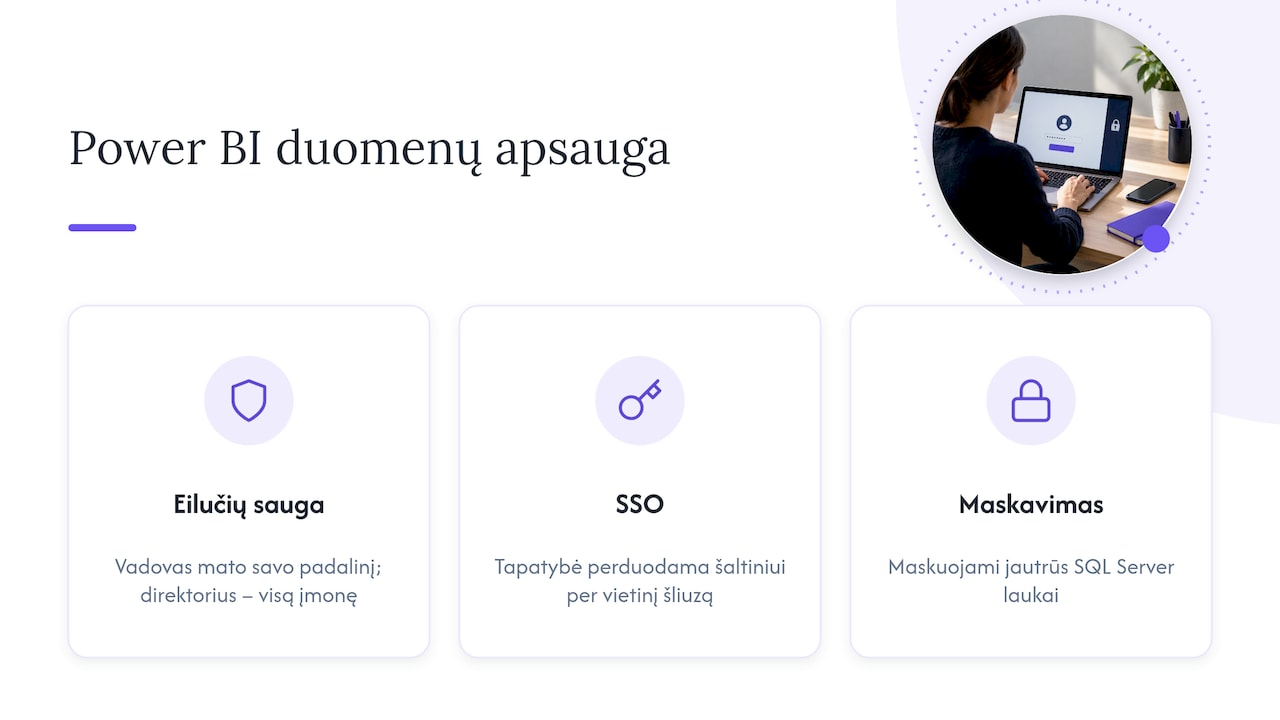
Accounting data is sensitive, so one of the first questions when rolling out Power BI is who sees what. A department head usually needs only their own department’s figures, whereas the finance director needs the whole company’s.
This is handled with Row-Level Security. Where the data source supports it, single sign-on can also be used: Microsoft describes SSO via the on-premises data gateway, where the user’s identity is passed through to the source and they see data according to their own permissions. If the accounting data is held in SQL Server, masking sensitive fields can add a further layer of protection; you will find a practical example in this SQL Server data masking guide.
We have covered separately how to share reports securely with managers or external consultants: ways to share data in Power BI.
Why reports slow down and how to prevent it
A slow report is usually a model problem rather than a licensing one. Microsoft stresses that a large number of visuals and an inefficient model directly affect refresh duration and gateway resource usage. The most common causes are:
- every accounting field is loaded into the model, even though the report needs only a third of them;
- Power Query transformations are not pushed back to the source (there is no so-called “query folding”), so all the raw data is pulled into memory;
- dozens of visuals are crammed onto a single page;
- there is no separate calendar table, so period comparisons are calculated in a convoluted way.
If you are choosing an analytics tool and comparing performance and handling of large models, this comparison of Power BI and Tableau is useful. We have written more about structuring a financial model in our guide the data model for finance.
SAF-T and internal analytics: different purposes
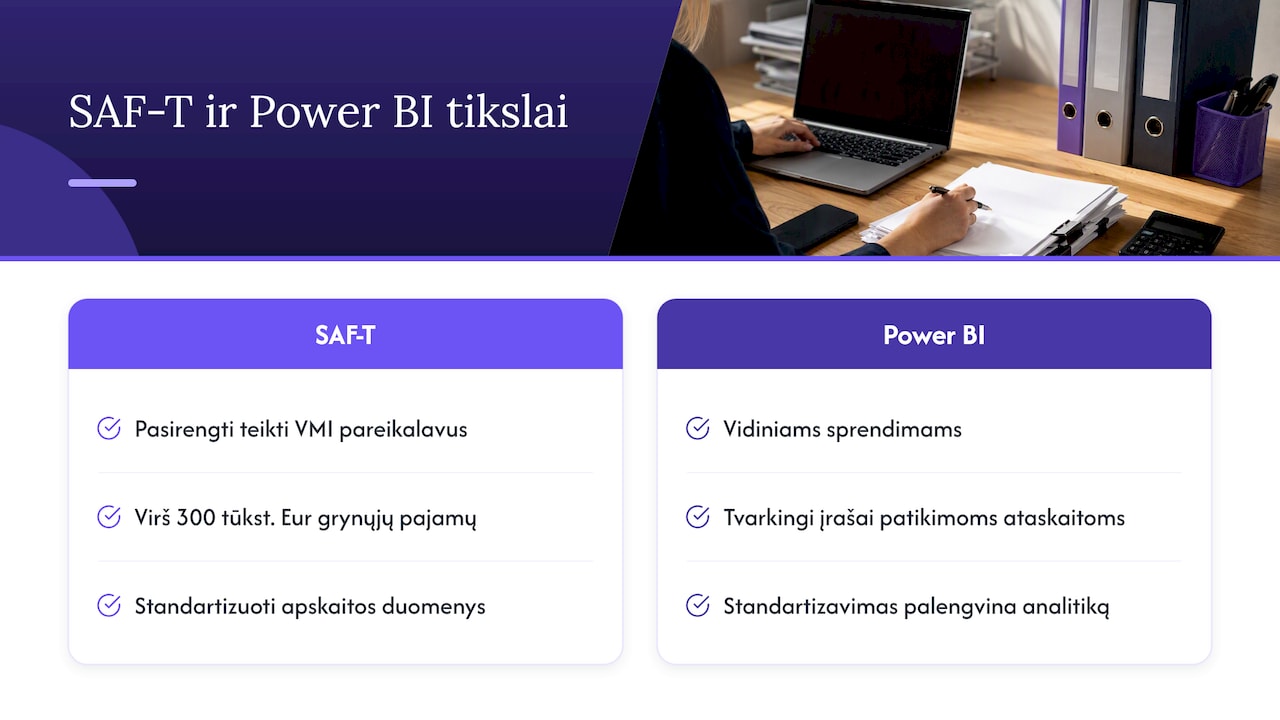
Accountants sometimes ask whether Power BI reports are connected with SAF-T, the Standard Audit File for Tax. Not directly. According to the State Tax Inspectorate’s (VMI) answers on SAF-T, taxpayers whose net sales revenue exceeds €300,000 must be ready to submit their accounting data in SAF-T format at the tax administrator’s request. That is an obligation to the state.
Power BI is intended for internal decision-making. Even so, both rest on the same precondition: business transactions recorded properly and consistently. The i.SAF-T subsystem, the tax authority’s platform for standardised accounting data, was built to collect accounting data in a standard form, and that same standardisation makes analysis much easier too: the more consistently documents are entered, the more reliable the reports.
Ready-built package or reports built from scratch
There are several ways to get accounting reports into Power BI. It is worth comparing them on time, cost and maintenance.
| Approach | Time to go live | Who maintains it | Suits |
|---|---|---|---|
| Manual export to Excel | Immediate | The accountant, every month | Very small companies with no need for drill-down |
| In-house build | Weeks or months | An internal analyst | Companies with a Power BI specialist |
| Ready-built package for Rivilė or Finvalda | Quick, the model already exists | The service provider | Most Rivilė and Finvalda users |
| Bespoke project | Depends on scope | The service provider and the company | Companies with several sources and specific processes |
The advantage of a ready-built package is that the accounting software’s data structure has already been analysed, and the reports and refresh are already set up. A bespoke project is needed when, alongside accounting data, you need to bring in CRM, logistics or industry-specific data, such as costs by construction site or results by restaurant outlet.
Our view
Working with Rivilė and Finvalda users, we see the same pattern again and again: the accounts department has all the data it needs, but the time it takes for a manager to reach a decision drags out because of manual work. A report takes a day or two to prepare, and by the time it is read, the figures are already out of date.
That is why we start not with attractive charts but with a reliable model and automatic refresh. Once revenue, costs, profit, the balance sheet and debts update without anyone having to step in, the accountant saves time that can go into analysis, and the manager sees current figures when they need them. Later we connect Excel, SharePoint, CRM or logistics data to the same model, so that the finances can be seen alongside operations.
We recommend starting with two or three reports the company already prepares regularly, and only then expanding. That way analytics becomes an everyday working tool more quickly.
— Analitika360
Analitika360 packages for Rivilė and Finvalda users
Analitika360 offers ready-built sets of Power BI reports that connect to your accounting software and refresh automatically:
- Rivilė Basic and Finvalda Basic: €59 a month;
- Rivilė PRO and Finvalda PRO: €89 a month;
- bespoke projects: €70 an hour;
- we can also supply the Microsoft Pro and Premium licences you need.
See our business analytics pricing and plans or take a look at the Rivilė Basic and Finvalda Basic packages.
FAQ
Does Power BI replace the reports in Rivilė or Finvalda?
No. The accounting software remains the core system in which transactions are recorded and statutory reports are prepared. Power BI reads the same data and presents it for analysis, with filters, comparisons and drill-down.
Do we have to install a data gateway?
If the accounting database is on the company’s server and not accessible over the internet, yes. Without a gateway, the Power BI service cannot automatically refresh reports from a local source.
How many times a day do the reports refresh?
That depends on the licence and the schedule you set. With a Pro licence you can schedule up to 8 refreshes a day; with Premium Per User or a Fabric capacity, up to 48.
Does the accountant need to know Power BI?
To use a ready-built package, it is enough to be able to filter and read a report; the model and refresh are maintained by the service provider. Basic Power BI knowledge comes in handy if you want to build additional pages yourselves.
Sources
- Microsoft Learn: Data refresh in Power BI
- Microsoft Learn: Configure scheduled refresh
- Microsoft Learn: On-premises data gateway sizing
- Microsoft Learn: Power BI implementation planning, data gateways
- Microsoft Learn: Overview of single sign-on for on-premises data gateways
- VMI: Frequently asked questions about SAF-T
- VMI i.MAS: About i.SAF-T