Your business in 360°
 Power BI Publish to Web: Steps and Risks

Power BI’s Publish to web feature turns a report into a public link and an HTML embed code. You can place it on a website, a blog or a social media post. The report stays interactive, but anyone on the internet can open it without signing in. That is why the feature is suitable only for data you are prepared to show to the whole world. In this guide you will find every step, the requirements, how refresh works and secure ways to share internal company data.
In brief
- What it is: public embedding of a Power BI report in any web page. Viewers need neither a licence nor a sign-in.
- Path: File > Embed report > Publish to web (public) > Create embed code, then copy the link or the HTML code.
- Requirements: an administrator must have enabled the feature, and publishing from a workspace requires a Pro or Premium Per User licence.
- Limits: reports with row-level security (RLS), DirectQuery or Live Connection sources are not supported. Data is cached for up to an hour.
- Most important: for profit, debt, salary or customer data, use secure embedding, for example in SharePoint, rather than public publishing.
Contents
- What Publish to web is and who can see a published report
- What to check before publishing
- How to publish a report: step by step
- How to embed a report in a website
- Refresh, caching and removing public access
- What data must never be published
- Secure alternatives for internal data
- Our view
- Financial reports that refresh themselves
- FAQ
- Sources
What Publish to web is and who can see a published report
According to Microsoft’s documentation on Publish to web, the feature is designed for embedding interactive reports in public pages. It works without authentication. Anyone with the link can view the report and pass it on to others. Search engines or other people may also find the link if it has been posted anywhere.
This is the fundamental difference from ordinary Power BI sharing. Normally a report can be seen only by members of your organisation to whom you have granted permissions. Once it is published to the web, permissions are no longer checked: a viewer sees exactly what anyone holding the public link sees.
Typical suitable uses:
- Open data reports on the website of a municipality, association or public body.
- Marketing or media visualisations of statistics that can be made public.
- Training and demonstration reports using generated, fictitious data.
- Portfolio examples showing anonymised and aggregated figures.
If you are new to the platform itself, start with the introduction to what Power BI is and what it is used for.
What to check before publishing
Public publishing usually stalls not because of a technical error but because of permissions or settings. Check the following points before you start.
Administrator setting and licences
- Tenant setting. A Power BI administrator must have enabled the Publish to web setting. Many companies deliberately restrict this feature, so if the menu item is greyed out, contact your IT administrator.
- Licence. To publish from My Workspace, a Power BI licence is enough. Publishing from a shared workspace requires a Pro or Premium Per User licence.
- Permissions. You need edit permissions on the semantic model and reshare permissions on the report. You must be able to edit the report.
What the feature does not support
Microsoft’s official documentation states that you cannot publish reports that:
- use row-level security (RLS);
- connect to data via DirectQuery or Live Connection;
- use a shared semantic model from another workspace.
This restriction makes sense. If row-level security is enabled in a report, the data is intended for specific users. A public link has no user, so the security rules cannot be applied.
How to publish a report: step by step
All the steps are carried out in the Power BI service (app.powerbi.com), not in Power BI Desktop. First, upload the report to the service.
- Open the report in a workspace where you have edit permissions.
- In the top menu, select File > Embed report > Publish to web (public).
- Read the text in the dialog box and select Create embed code.
- Read the warning carefully that the report will be visible to all internet users, and confirm publication.
- In the Success window, choose the report size and the default page.
- If needed, add a placeholder image. The page then loads faster, and the viewer sees a button to open the interactive content.
- Copy the link (if you are sending it by email or message) or the HTML code (if you are adding it to a website).
Each report gets one embed code. If you have already created a code, selecting Publish to web again will show you the existing code straight away rather than all the dialog boxes.
How to embed a report in a website
Paste the generated HTML code into a page on your website or blog. The code is an iFrame element, so in most content management systems it needs to go into an HTML block or code editing mode rather than an ordinary text field.
A few practical tips:
- Size. On your website, use the same aspect ratio you chose in the dialog box. Otherwise scroll bars or empty bands will appear.
- Mobile devices. Check how the report looks on a phone. If you have a mobile layout for the report, review it separately.
- Loading speed. On large pages, a placeholder image improves the user experience.
If you are building your site on the Power Pages platform, it has a dedicated Power BI component. The Power Pages guide explains that you can choose Publish to web as the access type for the component, but Power BI integration must be enabled first.
Refresh, caching and removing public access
How published data is refreshed
A published report updates itself: when you change the report or refresh the data in an imported model, the changes are reflected in the public version too. However, Microsoft states that data is cached for up to one hour from when it is retrieved. The feature is therefore not recommended for data that needs to refresh frequently.
In practice this means two things. First, figures in a public report may lag by up to an hour. Second, the data refresh itself must be scheduled in the service. How to set this up and what frequency limits apply to different licences is covered in the article on Power BI scheduled refresh.
How to remove public access
- Open the workspace containing the report.
- Select Settings > Manage embed codes.
- Next to the relevant code, choose delete.
Once the code is deleted, the link and the embedded iFrame stop working everywhere they were published. Bear in mind that if someone has already taken screenshots or downloaded the data, that cannot be undone.
What data must never be published
The main risk is simple: viewing requires no authentication, so confidential data becomes public. The Power BI implementation planning guidance also notes that views of public reports are not recorded in the audit log, so you will have no way of knowing who has seen them. Microsoft recommends testing and reviewing use of the feature before granting access.
It is also important that a viewer can reach more than what appears in the visuals: all content in the model is treated as public. If the model contains a hidden table with customer contact details, that too should be regarded as exposed.
| Data type | Can it be published publicly? |
|---|---|
| Open statistics, publicly reported indicators | Yes |
| Demonstration, generated data | Yes |
| Aggregated, anonymised market data | Yes, if the company permits |
| Revenue, expenses, profit, balance sheet | No |
| Receivables and payables | No |
| Employee salaries, personal data | No |
| Customer lists, pricing, inventory balances | No |
With personal data there is also a legal question. Before publishing anything relating to individuals, consult your data protection officer or lawyer. We cover this in more detail in the article Does Power BI comply with GDPR?
Secure alternatives for internal data
The most common mistake we see: a company uses a public link so that a manager or accountant can quickly look at a report without a licence. For internal data there are safer methods that keep permissions and data security intact.
| Method | Who can see it | Sign-in required? | Suitable for |
|---|---|---|---|
| Publish to web | Anyone with the link | No | Public data |
| Embed in SharePoint Online | Only those with permissions | Yes | Internal intranet |
| Embed in an internal portal | Only those with permissions | Yes | Company systems |
| Sharing and Apps | Selected users | Yes | Managers, teams |
The implementation planning guidance stresses that with secure embedding, users still need access to the Power BI items. That is precisely what protects the data. We have described how to add a report to an intranet in the article on Power BI reports in a SharePoint page, and you will find a comparison of all sharing methods in the guide to data sharing in Power BI.
Our view

We work with companies that analyse Rivilė and Finvalda accounting data: revenue, expenses, profit, the balance sheet, receivables and payables, and inventory. For data like this, Publish to web is almost never the right answer. Financial information is sensitive, and a public link has neither permission control nor an audit log.
Our experience shows that the real need is usually something else: a manager wants to see the latest figures without manual work. That is solved by an automatically refreshing report with correctly assigned access permissions, not by public publishing. We recommend public publishing only for carefully selected, aggregated data, tested first in a separate report with a separate model that contains nothing you would not want everyone to see.
— Analitika360
Financial reports that refresh themselves
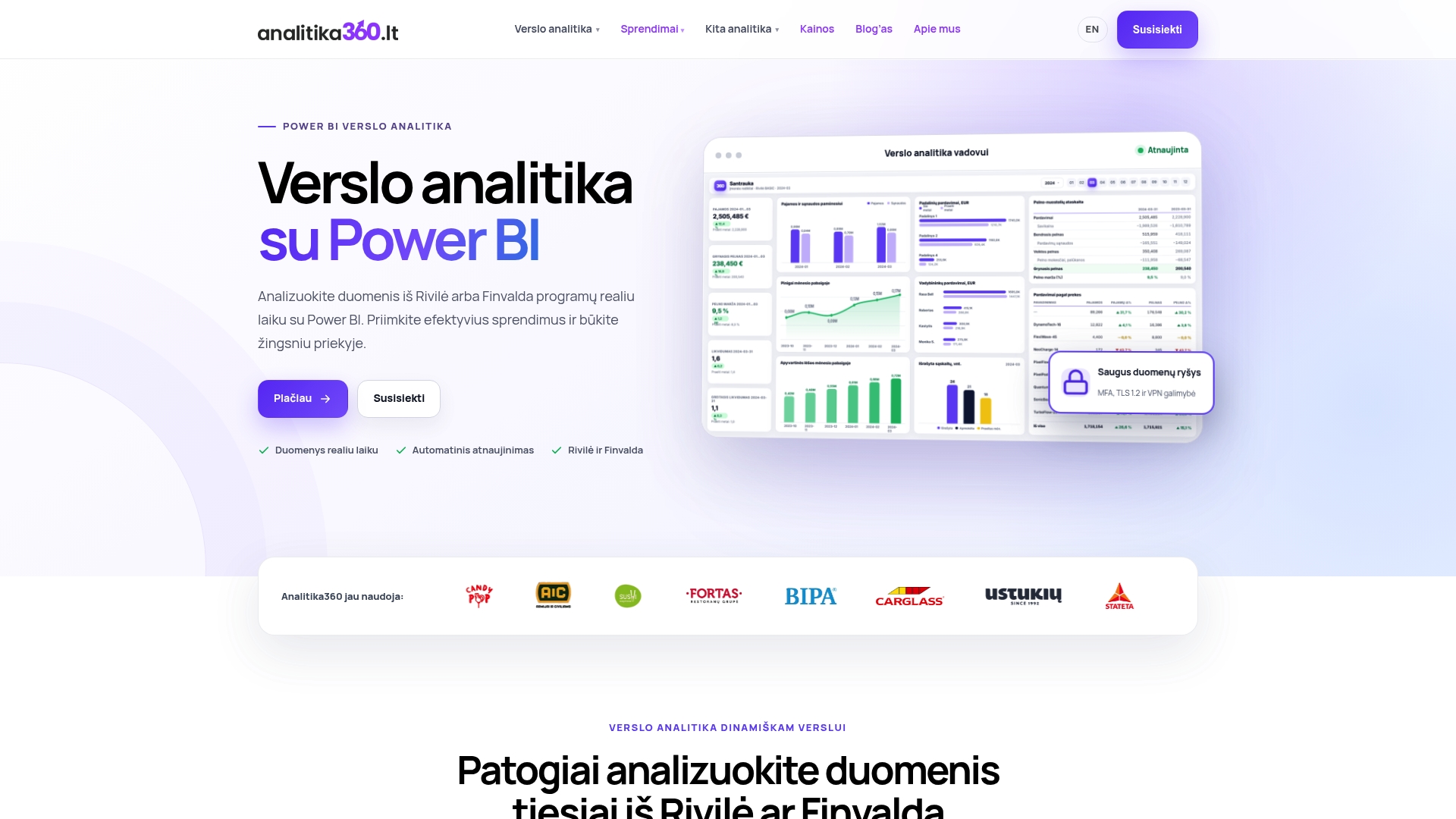
Analitika360 builds Power BI report packages for Rivilė and Finvalda users. The reports refresh without any extra work on your part, and the data is visible only to you and those you grant access to. SharePoint, Excel, CRM or logistics sources can also be connected to your accounting data in a single model.
- Rivilė Basic and Finvalda Basic: €59 a month.
- Rivilė PRO and Finvalda PRO: €89 a month.
- Bespoke projects: €70 an hour.
Compare package contents and terms on the business analytics pricing page, or find out how reports without manual work operate.
FAQ
Does a viewer need a Power BI licence?
No. Anyone with the link can open a publicly published report, without a licence and without signing in. A licence is needed only by the person publishing the report.
Why is the Publish to web menu item greyed out?
Most often the administrator has not enabled this tenant setting, or you do not have the necessary permissions. Also check whether the report uses RLS, DirectQuery or Live Connection, as such reports are not supported.
Can a public link be password-protected?
No, Publish to web has no access control. If only certain people should see the data, use secure embedding in SharePoint Online or an internal portal, sharing, or Power BI apps.
How long does it take for new data to appear in a public report?
Data is cached for up to one hour from when it is retrieved. So even after a successful refresh, the public version may show the previous figures for a while.
Sources
- Publish to web from Power BI, Microsoft Learn
- Power BI implementation planning: Content distribution and sharing, Microsoft Learn
- Add a Power BI component, Microsoft Learn